Timekeepers
Individual timekeepers have access to review the time that they have recorded, allowing them to correct flags as they are created.
Adjusting Notification Settings
By default all emails will be enabled and these will be focused on the time you record. You can adjust your notification settings to change the frequency of the emails or, if you only want to use Antidote to review other's time, disable them.
Click on your initial in the top right and select Settings and Notification Preferences. For full details see Profile and Notifications.
My Time
Timekeepers access their time through the My Time section in the left hand navigation. My Time is designed to be mobile friendly, making it easy to review and correct flags on the go.
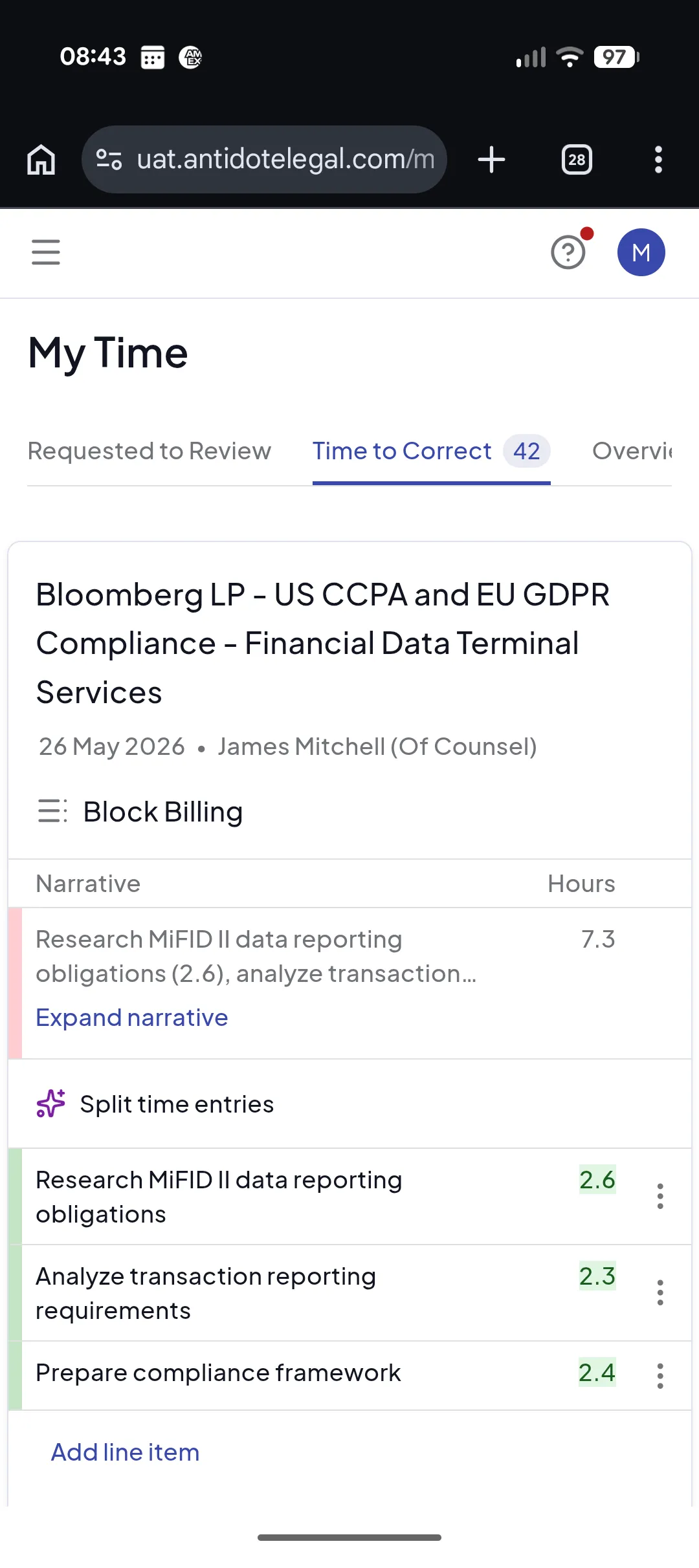
My Time has these tabs:
- High Priority - flags from rules your law firm has made high priority, and flags a colleague has asked you to review using the Notify Timekeeper button
- All Flags - every flag on your time entries that needs your attention, with suggested fixes you can accept, edit, or ignore
- All Entries — a full view of all your time entries in Antidote, allowing you to see your flags in context and review or revert previous corrections
Correcting Flagged Entries
Step 1: Receive the email
When Antidote creates flags on your time entries, you will receive a Recent Time Fixes email. This lists each flagged entry grouped by matter and invoice, showing the original narrative alongside the suggested correction.
If you are happy to accept all the suggestions without reviewing them individually, click Accept All in the email to resolve all entries in one go.
Step 2: Open My Time
To review each entry, click View & Edit in the email. This takes you directly to the All Flags tab in My Time, where your flagged entries are waiting.
Step 3: Review each entry
Flagged entries are grouped by matter. Each card shows the original time entry highlighted in red, with the Antidote suggested fix below it in green. The suggestion may be an updated narrative, a split into multiple entries, or a recommendation to remove the time — for more detail on the types of suggestion see Suggestions.
For each entry you have three options:
- Accept — apply the suggested fix as-is. The entry is marked as corrected and removed from the list.
- Edit then accept — click into the narrative or hours to make your own changes before accepting. This is useful when the suggestion is close but needs adjustment.
- Ignore — dismiss the flag if you believe the original entry is correct and does not need changing.
Step 4: Work through until complete
Continue reviewing entries until all have been accepted, edited, or ignored. When there are no remaining entries to action, My Time will show a "You are up to date" message confirming your time is clear.
Approving your own Time
Some rules require approval rather than correction - for example, travel that is only billable with the client's prior consent. If one of your entries needs approval, you'll see it in All Flags with a status of Approval needed, alongside any flags.
Since it's your own time, you can resolve it yourself: click Approve if you know approval was obtained, or the X button to dismiss it if you don't think it applies. You can add a note either way to record the details. See Approvals for more detail.
High Priority
The High Priority tab works in the same way as All Flags - you review each entry card and accept, edit, or ignore the suggestion. The difference is that it only shows high priority flags. These are flags from rules your law firm wants brought to your attention immediately, and flags a colleague has specifically asked you to review by clicking the Notify Timekeeper button.
When a colleague has already reviewed the entry and forwarded a suggestion to you, you will see an indicator on the card showing who took that action and what they did:

This gives you the context of who asked you to review the entry before you decide how to act on it.