Timekeepers list
Clicking on Timekeepers in the left menu will show a list of all the timekeepers for which Antidote has data.
Timekeepers list
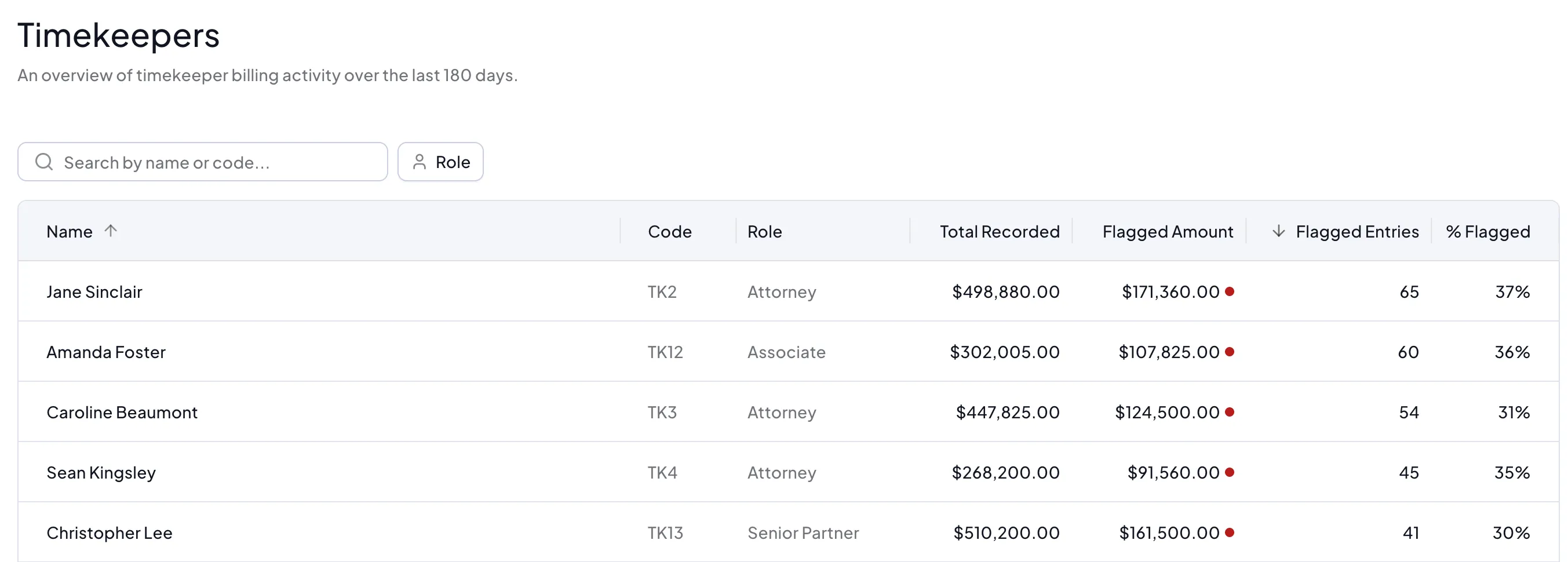
The table displays the following columns from left to right:
- Name - the timekeeper's name
- Timekeeper Code - the timekeeper's code from your finance system
- Role - the timekeeper's role or level, such as associate or partner
- Total - the total time recorded in the last 180 days
- Flagged - the total flagged amount in monetary value
- Flagged Entries - the number of flagged entries out of the total entries
- % Flagged - the percentage of all entries that have been flagged
The default sort order places the timekeepers with the most flagged entries at the top, so the timekeepers with the most time to correct are shown first.
You can filter the list by role (such as partner or associate) and search by timekeeper name or code.
Timekeeper detail page
Clicking on a timekeeper opens their detail page.
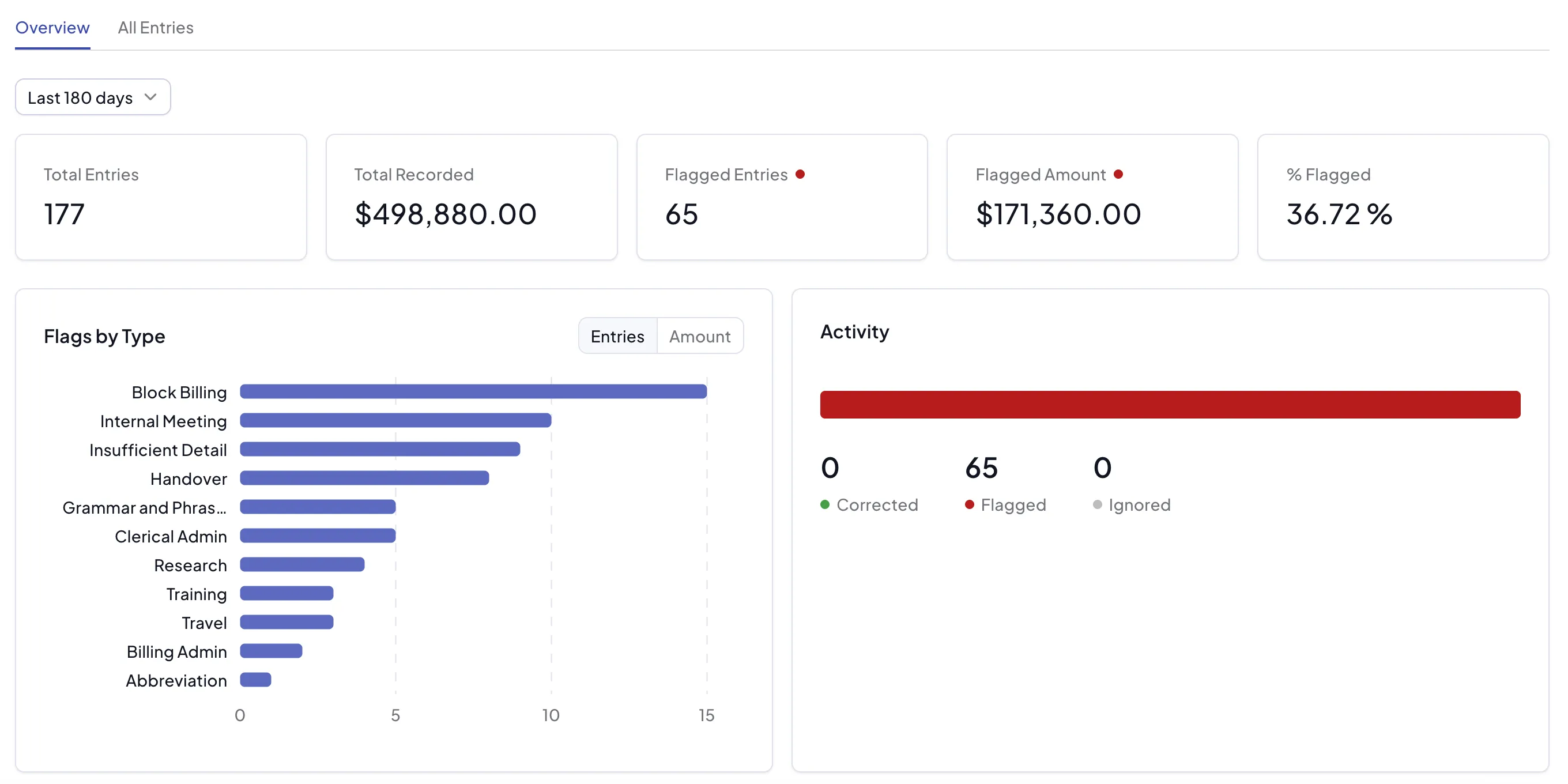
At the top of the page is a date picker, which defaults to the last 180 days. You can select a shorter period to assess whether a timekeeper's timekeeping is improving over time.
Below the date picker, a summary row shows the following totals for the selected period:
- Total entries - the total number of time entries
- Flagged entries - the number of entries that have been flagged
- Flagged amount - the total flagged value in monetary terms
- % flagged - the percentage of entries that have been flagged
All Entries tab
The All Entries tab lists the time entries for the timekeeper. For details on working with this view, see Draft Bills.
The All Entries tab on the timekeeper detail page only shows entries for the timekeeper you are currently viewing.
Flag breakdown charts
The two charts show the biggest flags by type, such as block billing or vague narrative. You can switch each chart between viewing by number of entries or by amount.
Activity
The activity chart shows the number of corrected, flagged, and ignored items in the selected period. This can indicate whether the timekeeper, or someone on their behalf, is actively making corrections.
Approvals tab
If the timekeeper has any outstanding approvals - either on their individual time entries or applying to them as a timekeeper on a matter - the detail page will have an Approvals tab, showing a count of outstanding approvals for this timekeeper.
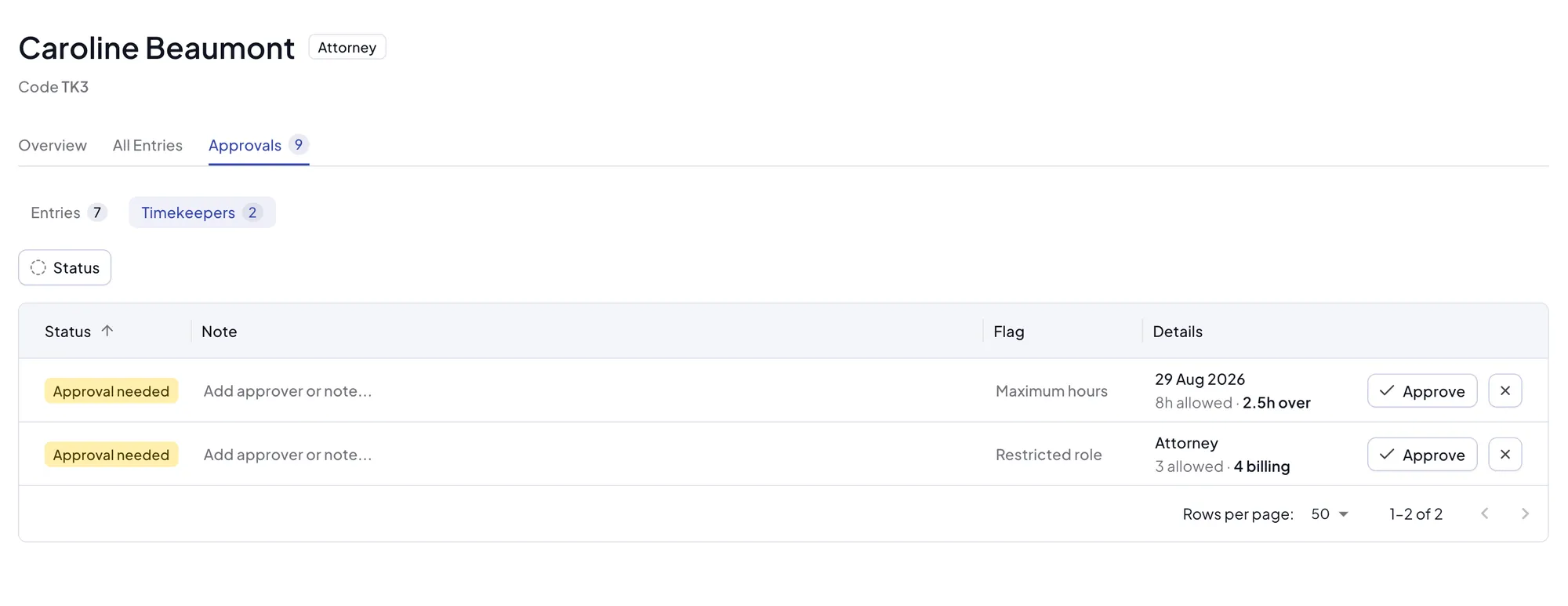
Like the matter's Approvals tab, this is split into two views:
- Entries - approvals required on this timekeeper's individual time entries
- Timekeepers - approvals required for this timekeeper as a whole on a matter, for example exceeding a maximum hours threshold or a role restriction
On the Timekeepers view, the table shows the status, note, the rule that required approval (Flag), and rule-specific Details - for example the date and hours over the limit, or the role and how many timekeepers of that role are billing.
Approvals here work the same way as elsewhere: Approve to confirm approval was obtained, or dismiss with the X button, optionally with a note. See Approvals for more detail.
Activity per matter
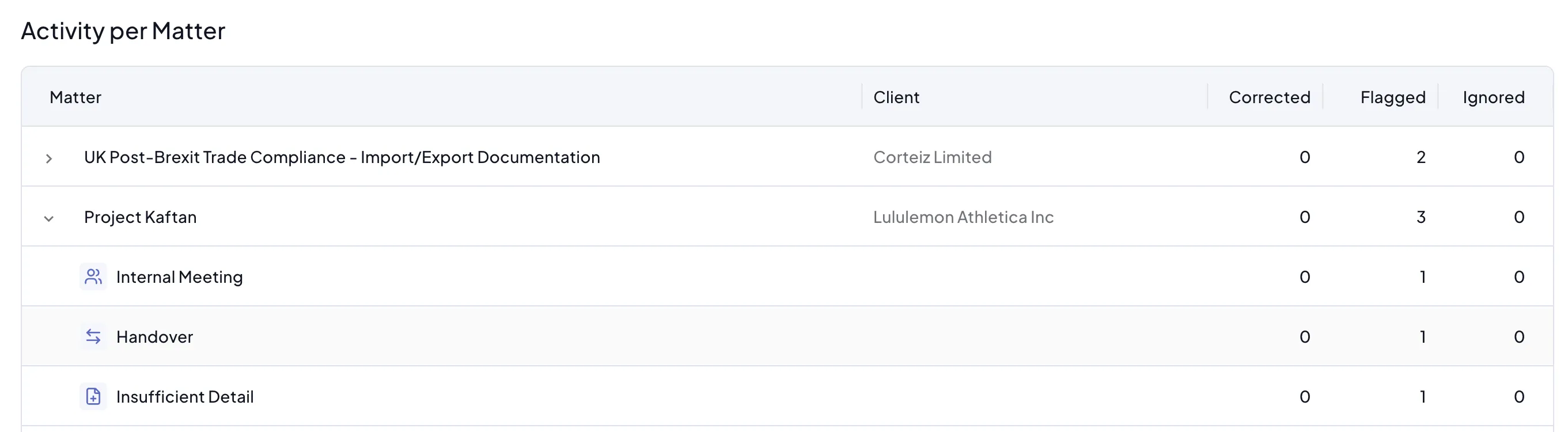
The activity per matter table at the bottom of the page shows each matter for which time was recorded in the selected period, along with the corrected, flagged, and ignored time for that matter.
Clicking the arrow to the left of a matter expands it to show a breakdown by rule type, with the number of flagged and ignored entries for each rule.