Matter View
Matter list
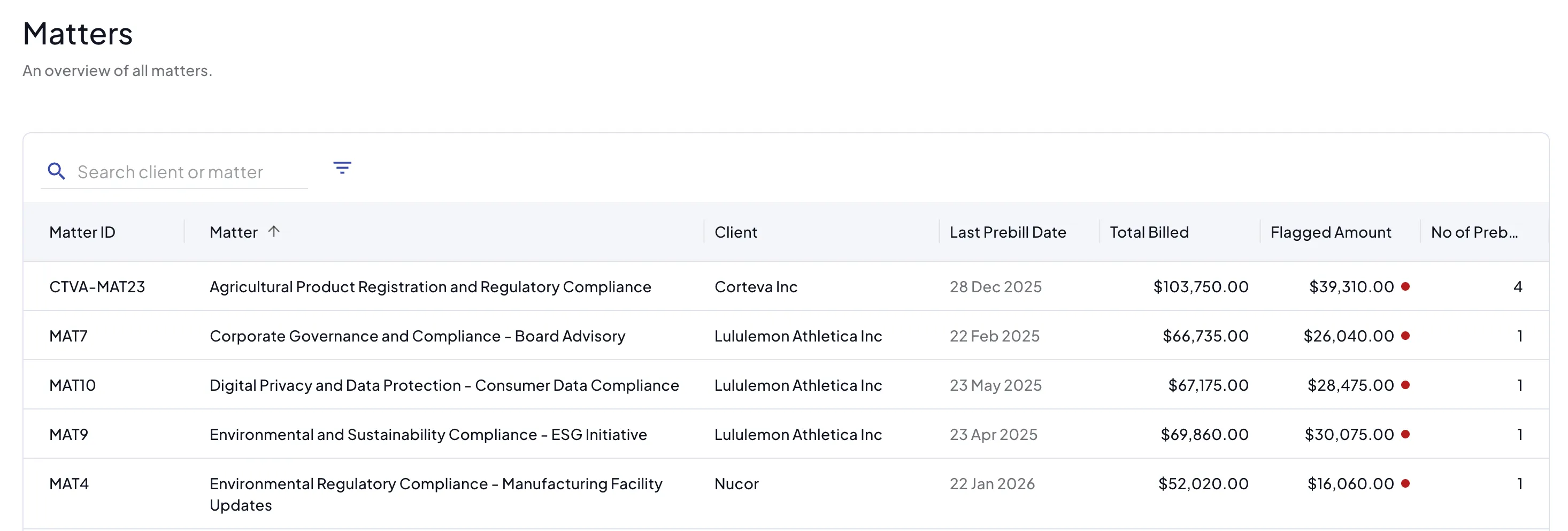 Clicking on Matters in the menu will list all the matters that you have access to in Antidote. The table displays the following columns from left to right:
- Matter ID - from your finance system
- Matter - the matter name or description
- Client - the client for the matter
- Last Draft Bill/Invoice - the most recent draft bill or invoice
- Total Billed - the total billed on that matter that has been reviewed by Antidote
- Flagged - the amount that is flagged
Searching the matters will match across matter ID, matter name and you can filter by client. You can also sort the table by clicking on the column headers.
The matters you see will depend on what clients you have access to and what data is being read by Antidote. For example, Antidote may not read fixed fee matters. If you think you should see a matter that is not listed contact your administrator or [email protected]
Matter detail page
Clicking on a matter will bring you to the matter detail page. You will see information about the matter and every time entry that Antidote has processed for the matter.
If your finance system is connected to Antidote and task code mapping has been configured, the matter header will show the task code set assigned to the matter.

See Task Codes for more on task code sets.
Matter currencies
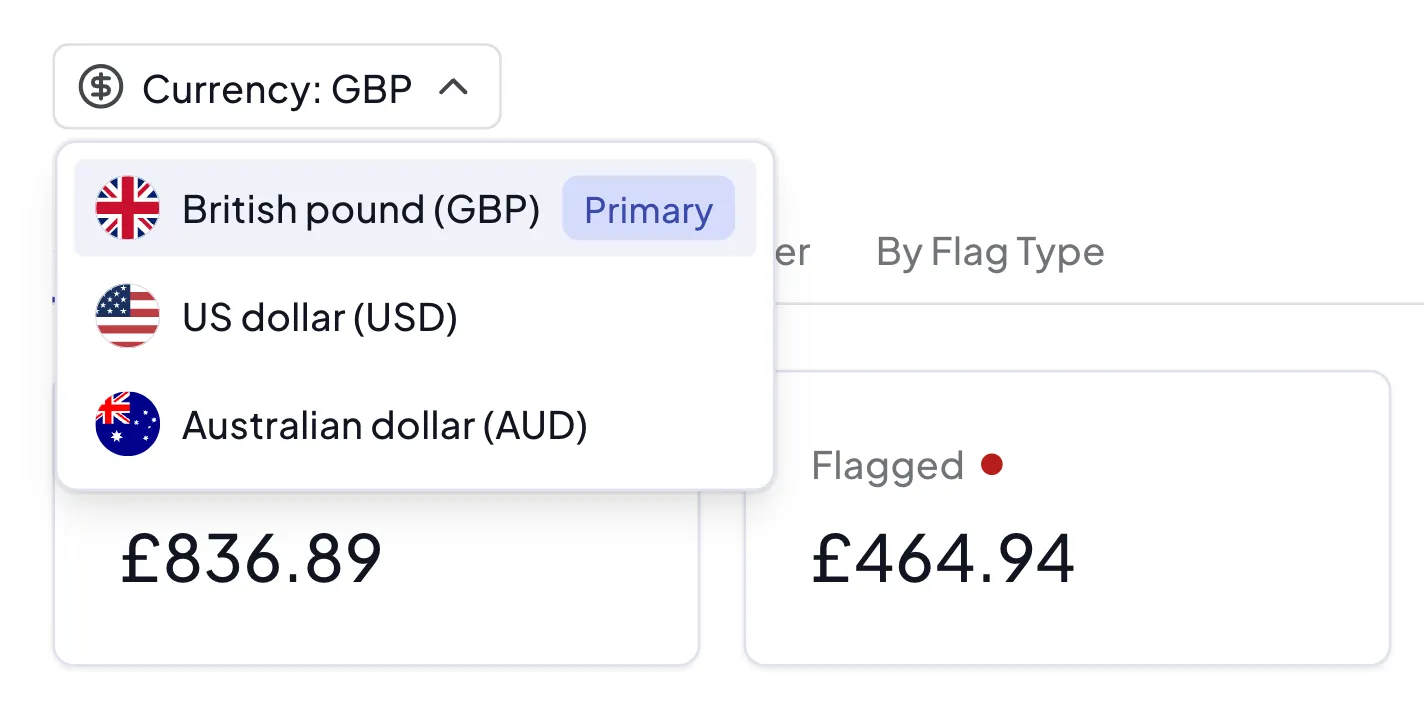 When Antidote was set up your law firm will have chosen the primary currency that your firm works with. By default matter totals will be shown in this currency. You will also have the option of two other currencies to select.
If the time entries in the matter are recorded in another currency they will be converted to the display currency using standard exchange rates on the date of the time entry and summed to the totals. The converted amount will be shown on top and the original amount underneath.
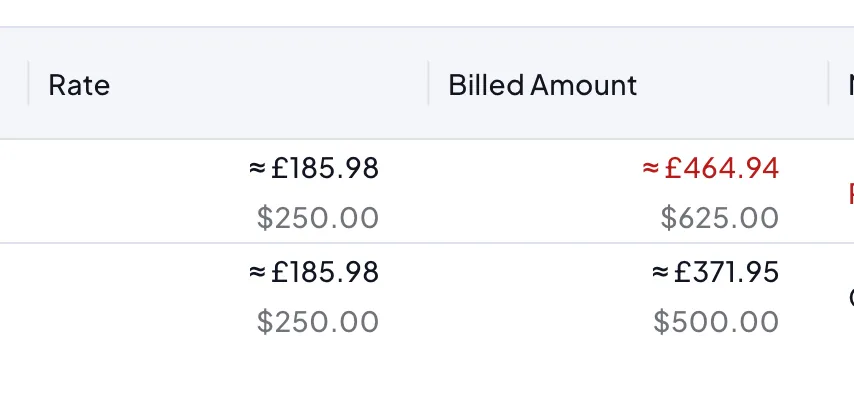
Currency conversion is intended to show approximate values for information only. Antidote does not replace the totals in your finance and billing system for accounting purposes.
Overview tab
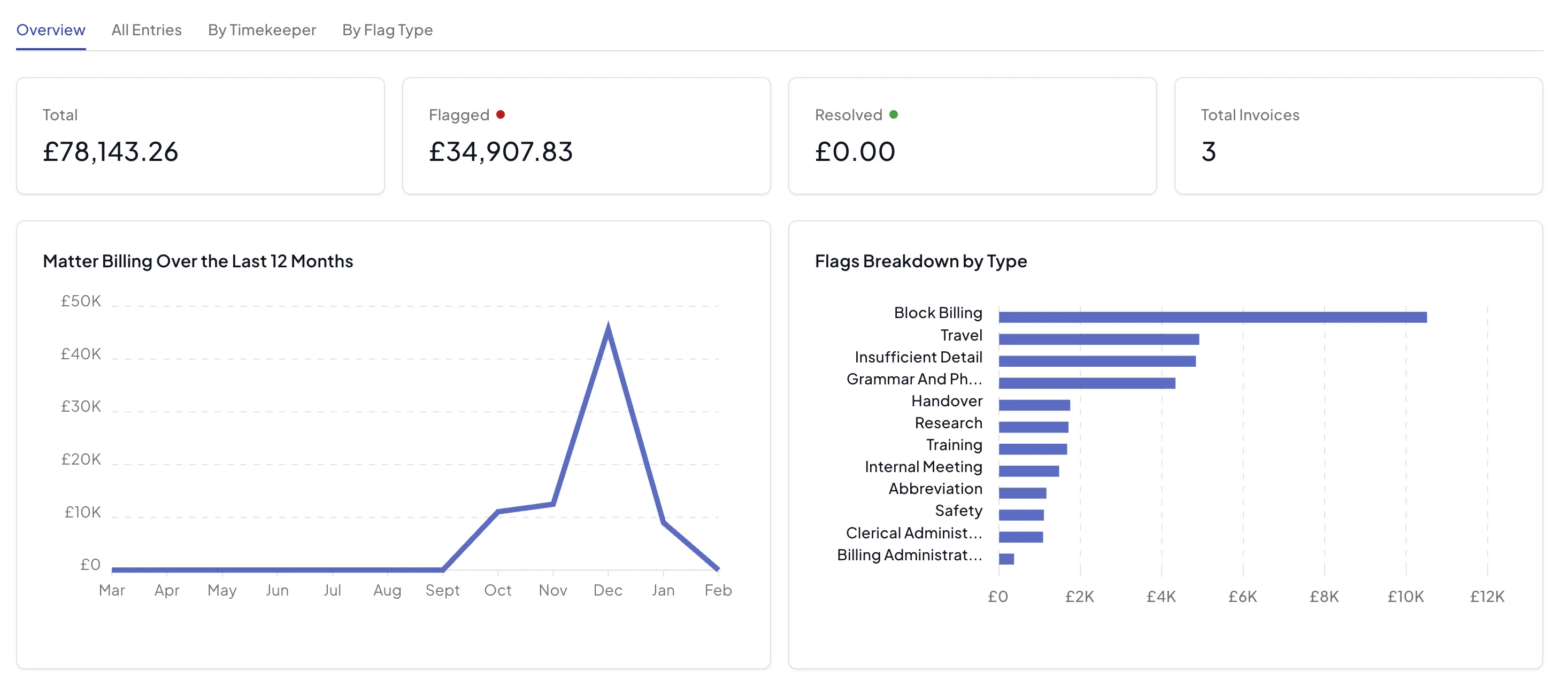
In the overview you can see totals for the matter, billing over the past 12 months and the most common flags.
A table of the matter time entries is shown at the bottom with the most recent entries first. Selecting any of these will open the side bar with the card view.
All Entries tab
For a focused view of all the time entries use the All Entries tab. This is best for working with larger numbers of time entries.
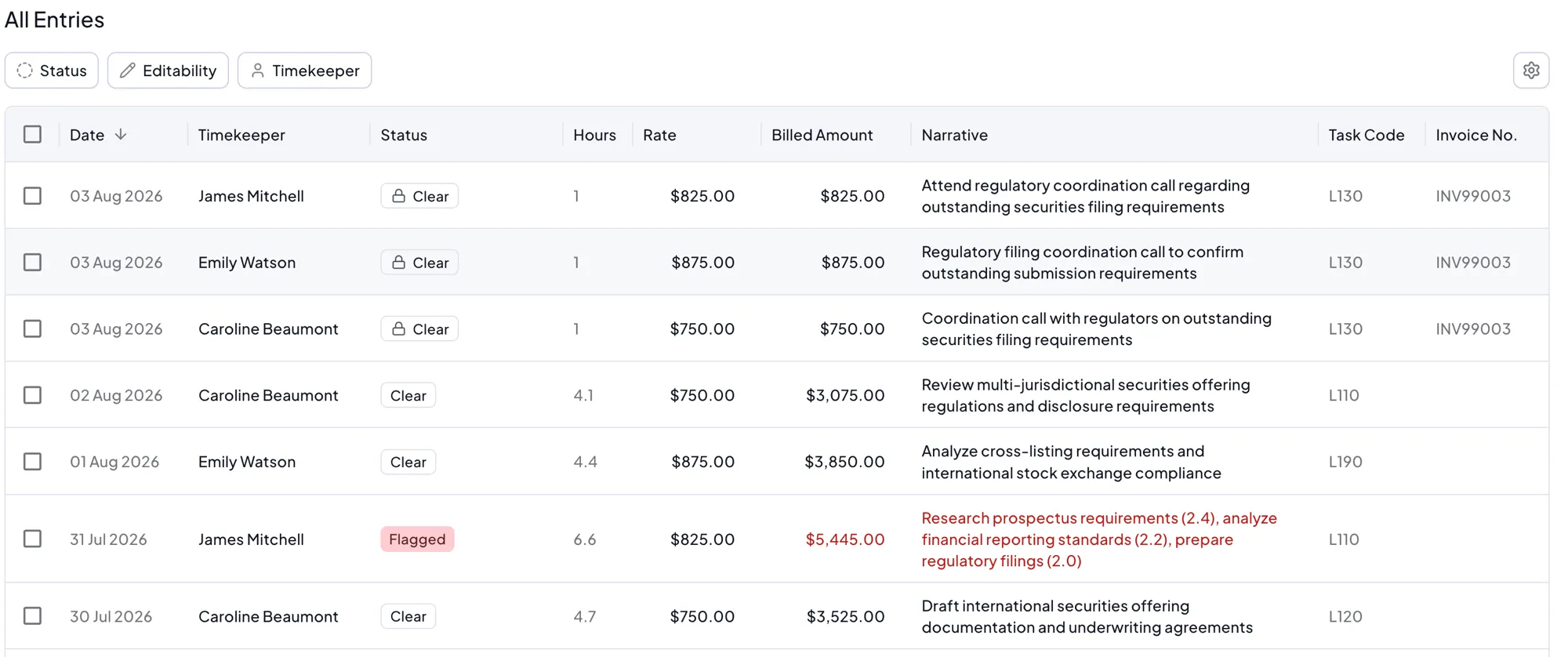
The table displays the following columns from left to right:
- Date - the date of the time entry
- Timekeeper - the timekeeper who recorded the entry
- Status - the current status of the entry
- Hours - the hours recorded
- Rate - the billing rate applied
- Billed Amount - the billed amount for the entry
- Narrative - the time entry narrative
- Task Code - the task code assigned to the entry, if task codes are enabled for the matter (see Task Codes)
- Invoice No. - the invoice the entry has been billed on, if any
By Timekeeper tab
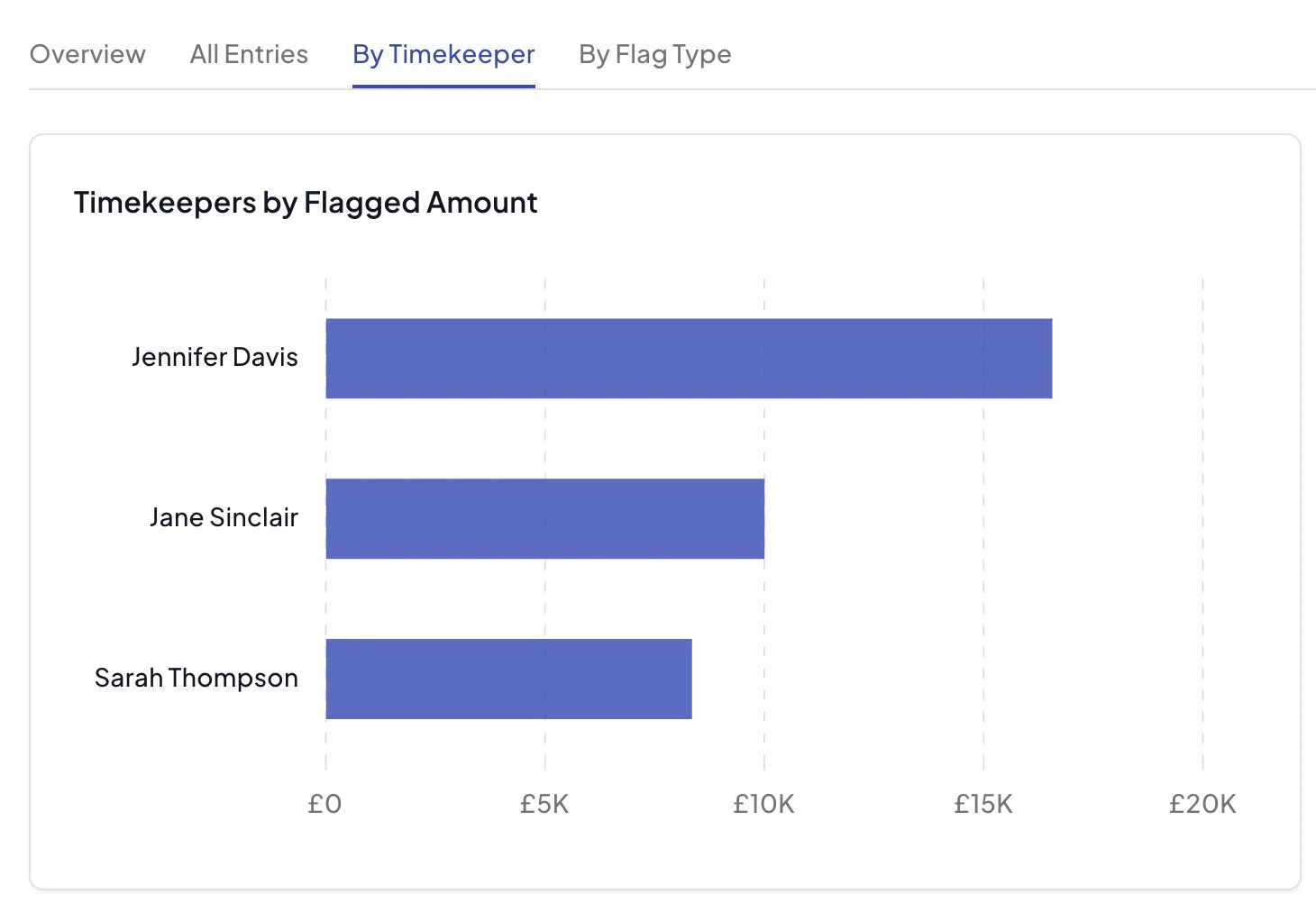
This will show a section for each timekeeper that has any unresolved flags in the status of flagged or timekeeper notified.
In this view you can quickly focus on the issues for particular timekeepers and if needed notify the timekeeper or ignore the flags for them in bulk:
By Flag tab
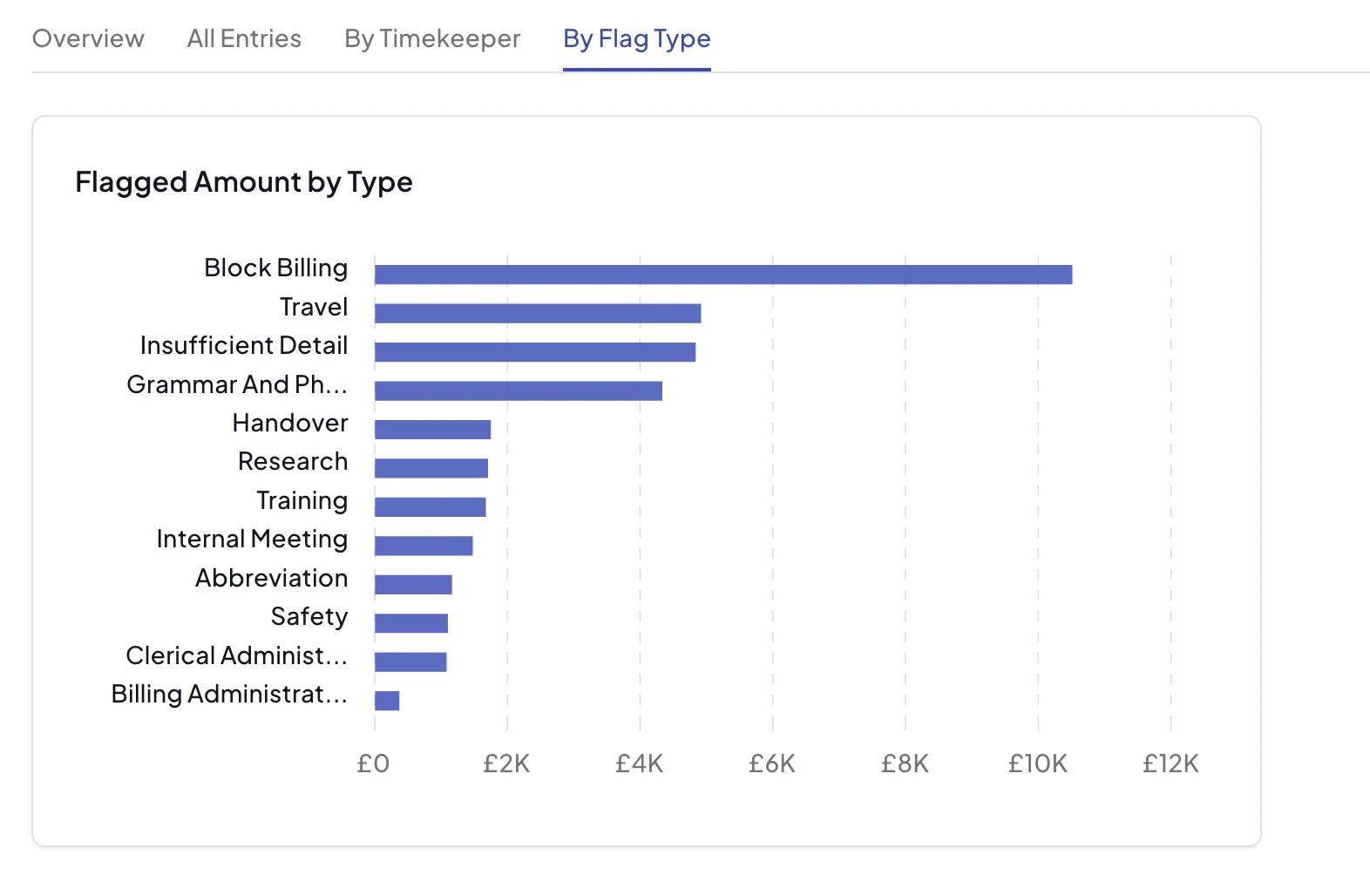
This section will group the flagged entries by flag type.
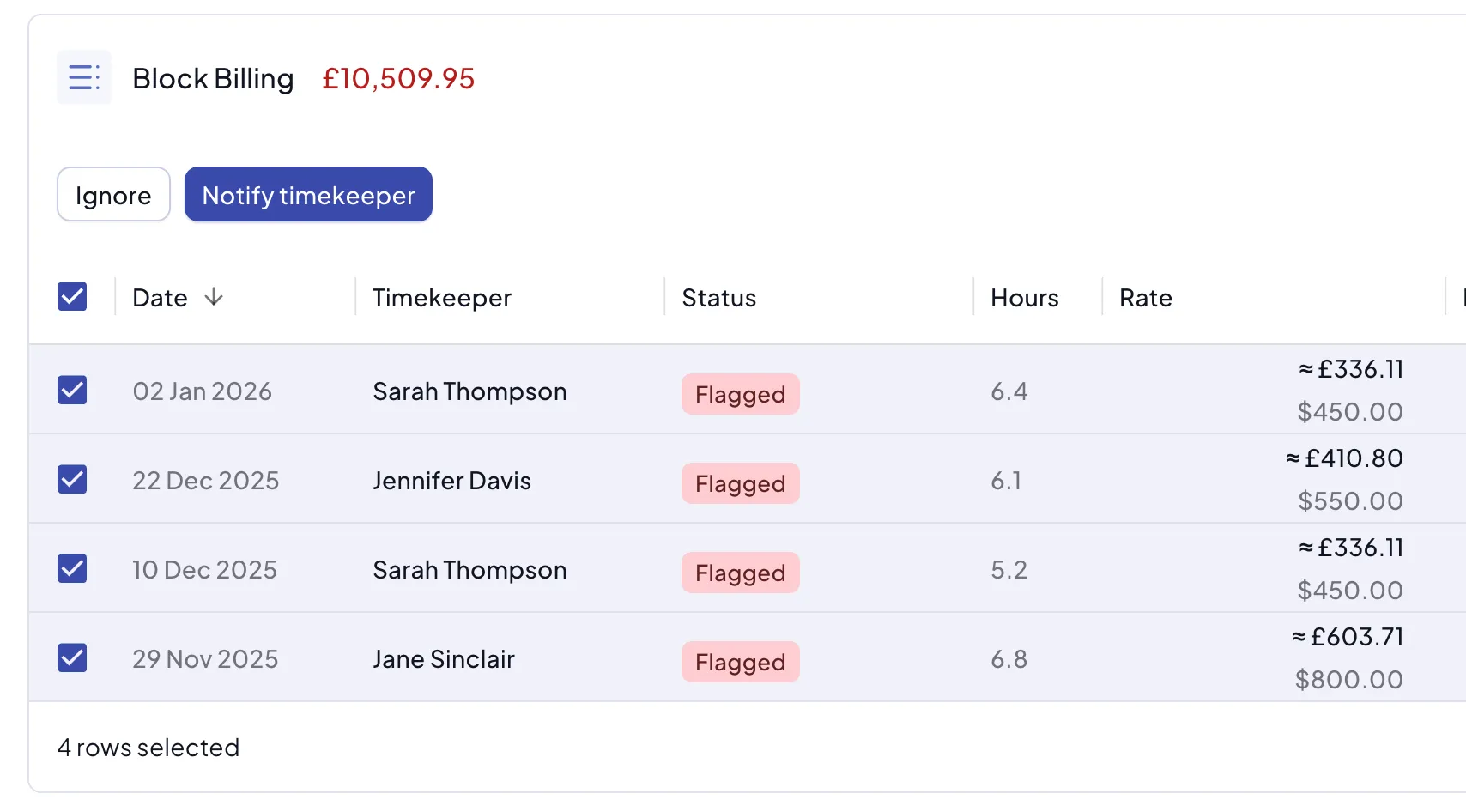
In this view you can focus on specific types of flag and notify the timekeeper or ignore the flags in bulk: