Meetings
The Meetings feature is in beta. The Meetings tab is only available if the meetings feature has been enabled for your firm.
Antidote automatically detects meetings across time entries on a matter and flags potential issues such as mismatched hours, inconsistent narratives, or too many timekeepers recorded to the same meeting. The Meetings tab lets you review and resolve these issues in one place rather than fixing each entry individually.
Meetings tab
Navigate to Matters in the menu and open a matter. Click the Meetings tab to see all detected meetings for that matter.
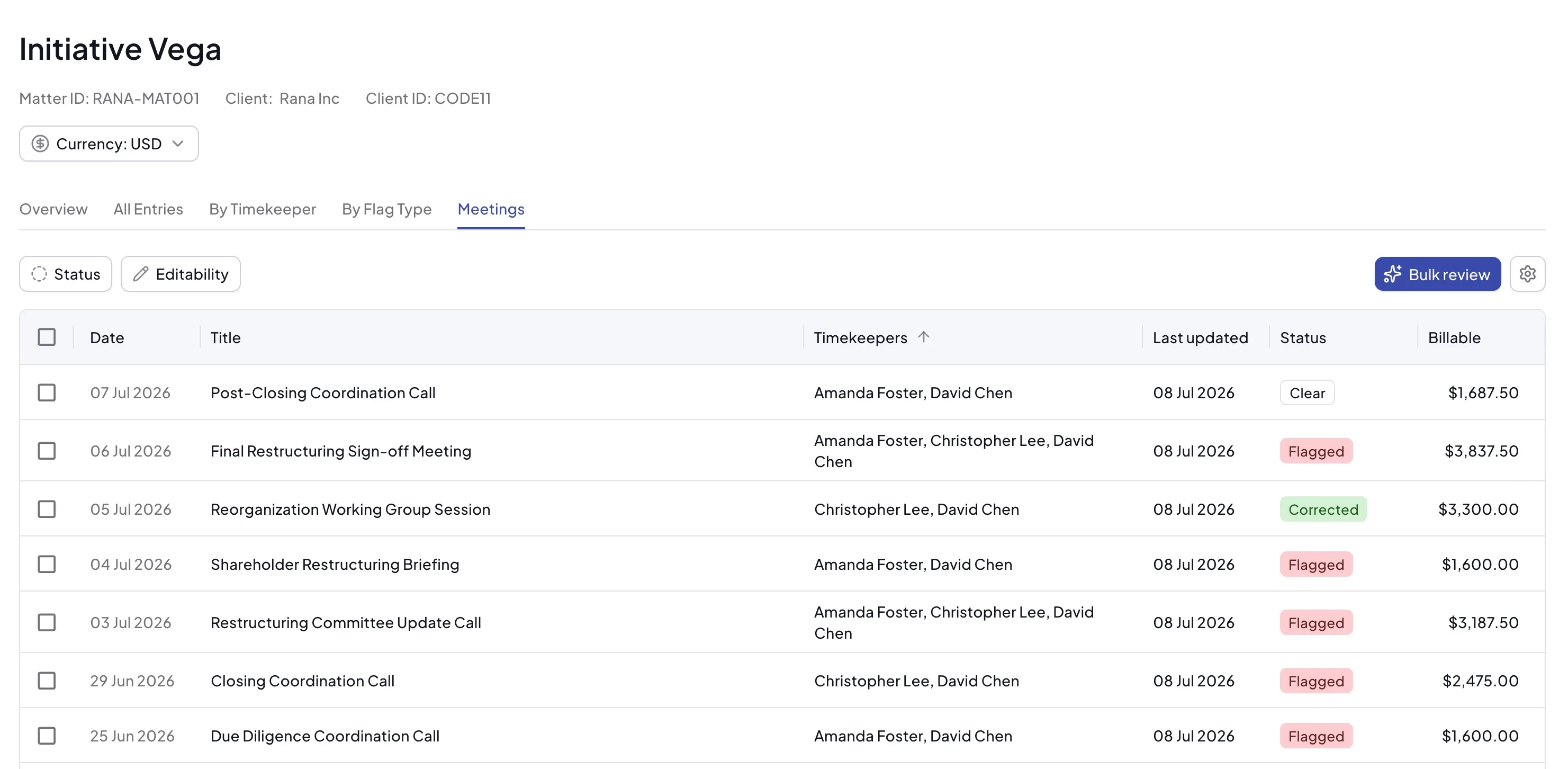
Use the Status and Editability filters above the table to narrow the list - for example to show only flagged meetings, or only meetings on invoices that are still editable. If any meetings require attention, click Bulk review to step through each meeting that needs action in turn.
Automatic meeting detection
Each day, Antidote checks every matter for time entries older than 7 days and analyzes them for meetings. This delay gives timekeepers time to record and finalize their entries before they're analyzed.
The 7-day detection window is configurable per customer. Contact Antidote if you'd like this changed for your firm.
Each type of meeting flag corresponds to a rule that must be enabled in the ruleset applicable to the matter. Running meeting detection will still identify meetings within the matter but if a rule is not enabled, that flag will not appear, even if the underlying issue exists in the time entries. You can review the rules enabled for the client or payor in the client or payor page if you have access.
Meetings table
The meetings table shows one row per detected meeting. Each row displays:
- Date - the date the meeting entries were recorded
- Title - a short description of the meeting, generated from its entries
- Timekeepers - the timekeepers with entries for this meeting
- Last updated - the date the meeting was last updated
- Status - the current resolution status of the meeting: Clear (no issues detected), Flagged (unresolved issues), or Corrected (every entry has been resolved, see Actions below)
- Billable - the total billable amount across all entries in the meeting
Meeting flags
A meeting can have up to three types of flag. When more than one applies to an entry, the highest-priority flag is shown in the meeting detail sidebar (see Reviewing a meeting below). The priority order is:
- Max Timekeepers Exceeded - too many timekeepers are recorded to this meeting. Some entries may need to be removed or marked as non-billable. This rule has a configurable parameter for the maximum number of timekeepers allowed per meeting. Your administrator can set this threshold when configuring the ruleset.
- Inconsistent Meeting Time - the entries for this meeting show different hour amounts. The durations need to be aligned.
- Inconsistent Meeting Narrative - the narratives for this meeting describe it in different ways. A consistent description needs to be applied.
If a time entry that is part of a meeting has other unresolved flags (such as block billing or clerical admin), accepting or ignoring an Inconsistent Meeting Time or Inconsistent Meeting Narrative flag on that entry will also apply the suggested fixes for those other flags. It is good practice to resolve most or all standard flags on a matter before running meeting detection.
Reviewing a meeting
Click on a meeting row to open the meeting detail sidebar. The sidebar shows all time entries recorded for that meeting, along with Antidote's suggested fixes.
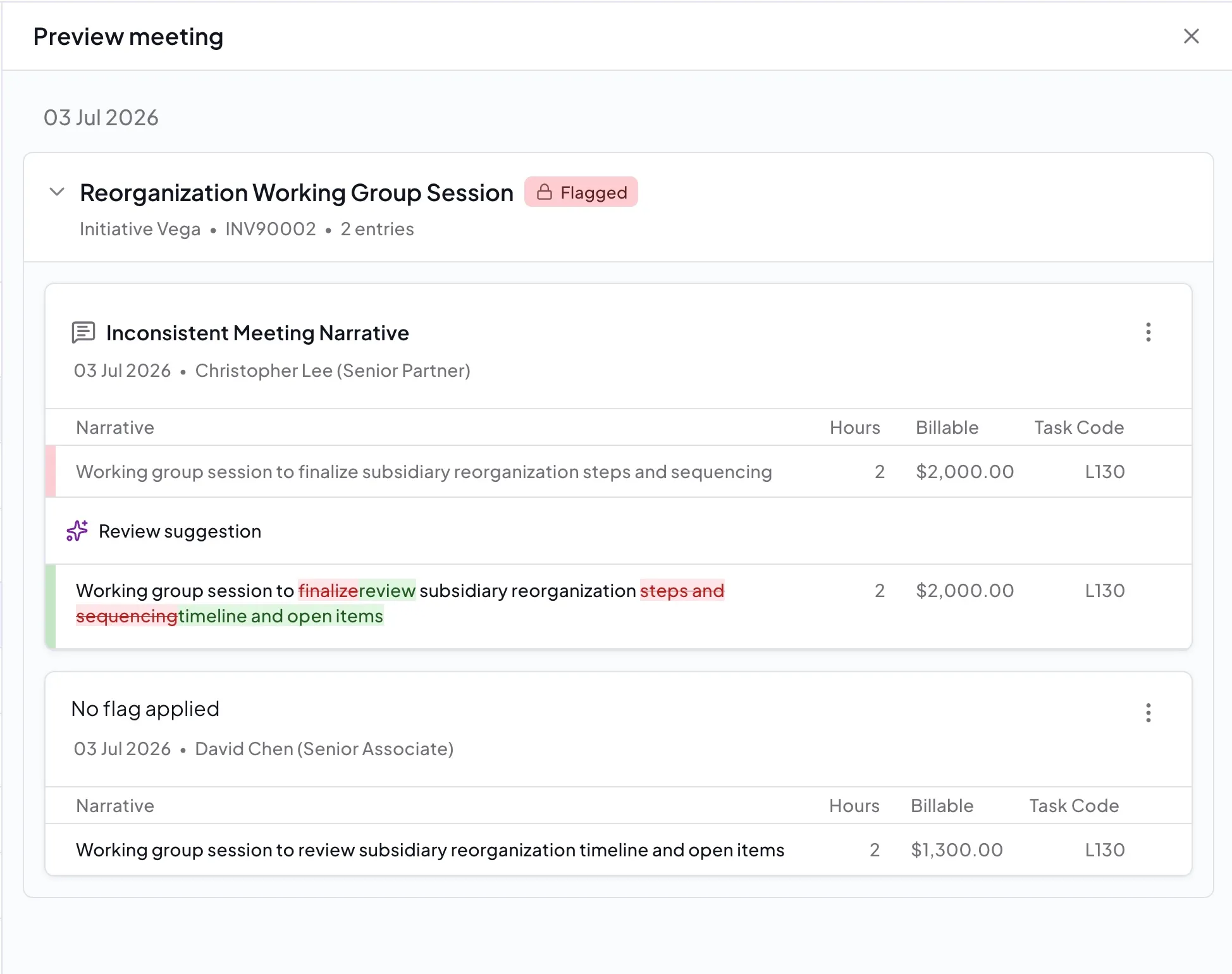
Each entry in the sidebar shows:
- The timekeeper's name
- The original narrative (highlighted in red where changes are suggested)
- The suggested narrative or hours (highlighted in green)
- The current status of that entry
Actions
For each entry in a meeting you can take the following actions:
- Accept - apply the suggested fix to the time entry
- Ignore - dismiss the flag for this entry if you believe it is correct as-is
- Notify Timekeeper - send the entry to the timekeeper to review and correct. The flag is set to high priority so it appears on their High Priority tab
- Remove entry - remove the time entry from the meeting (used when a timekeeper should not have been recorded to the meeting)
You can edit a suggested narrative or hours before accepting, in the same way as suggestions elsewhere in the matter.
A meeting's status only changes to Corrected once every entry in the meeting has been resolved (accepted, ignored, removed, or sent to the timekeeper).
Navigating to a meeting from a time entry
When viewing time entries in the matter view, any entry that has been detected as part of a meeting will show a Meeting indicator on the entry card. Click this link to go directly to that meeting in the Meetings tab.
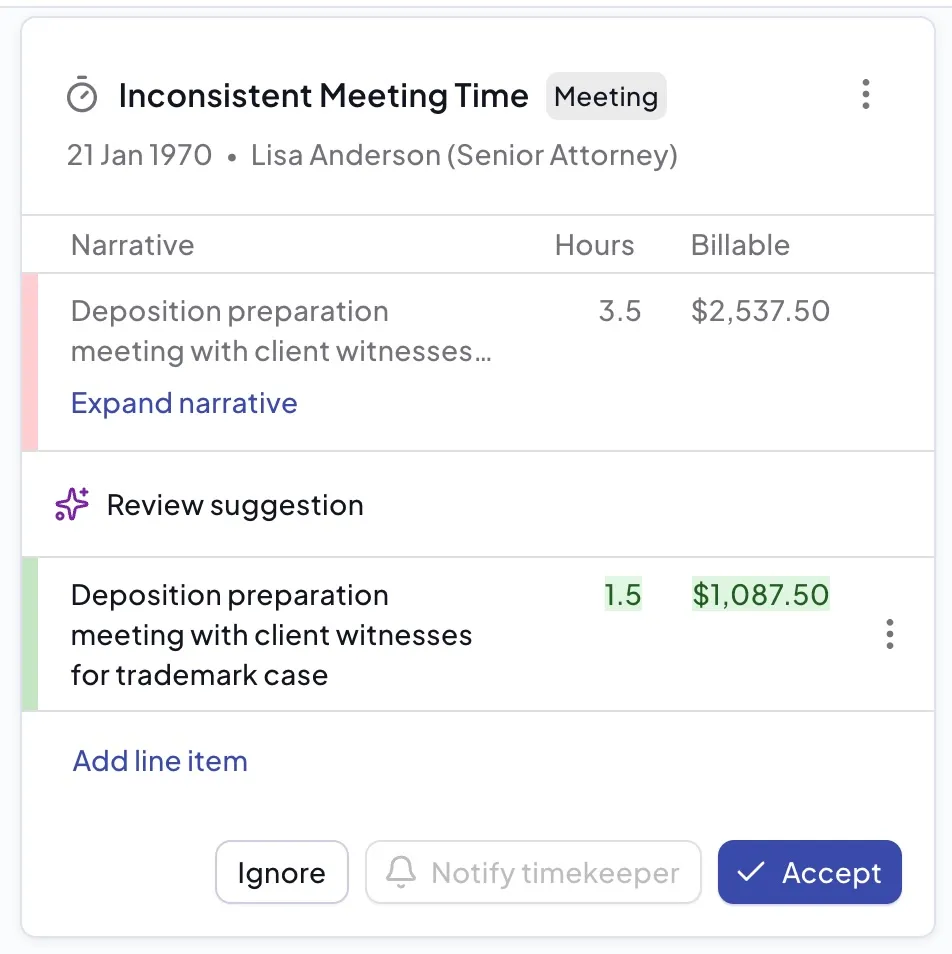
For more information on how flags and suggestions work across Antidote, see Flags and Suggestions.