Draft Invoices
Draft invoices will mirror those in your finance system. Depending on the system you use, you may know these as prebills or proforma. Draft invoices contain time entries ready for review before final billing. In Antidote, you can review flagged time entries, accept or ignore suggestions, and notify timekeepers of issues, all before an invoice is sent to the client.
Draft invoices
Navigate to Invoices in the menu to see all draft invoices and billed invoices. The Draft tab shows only draft invoices that have not yet been finalized.
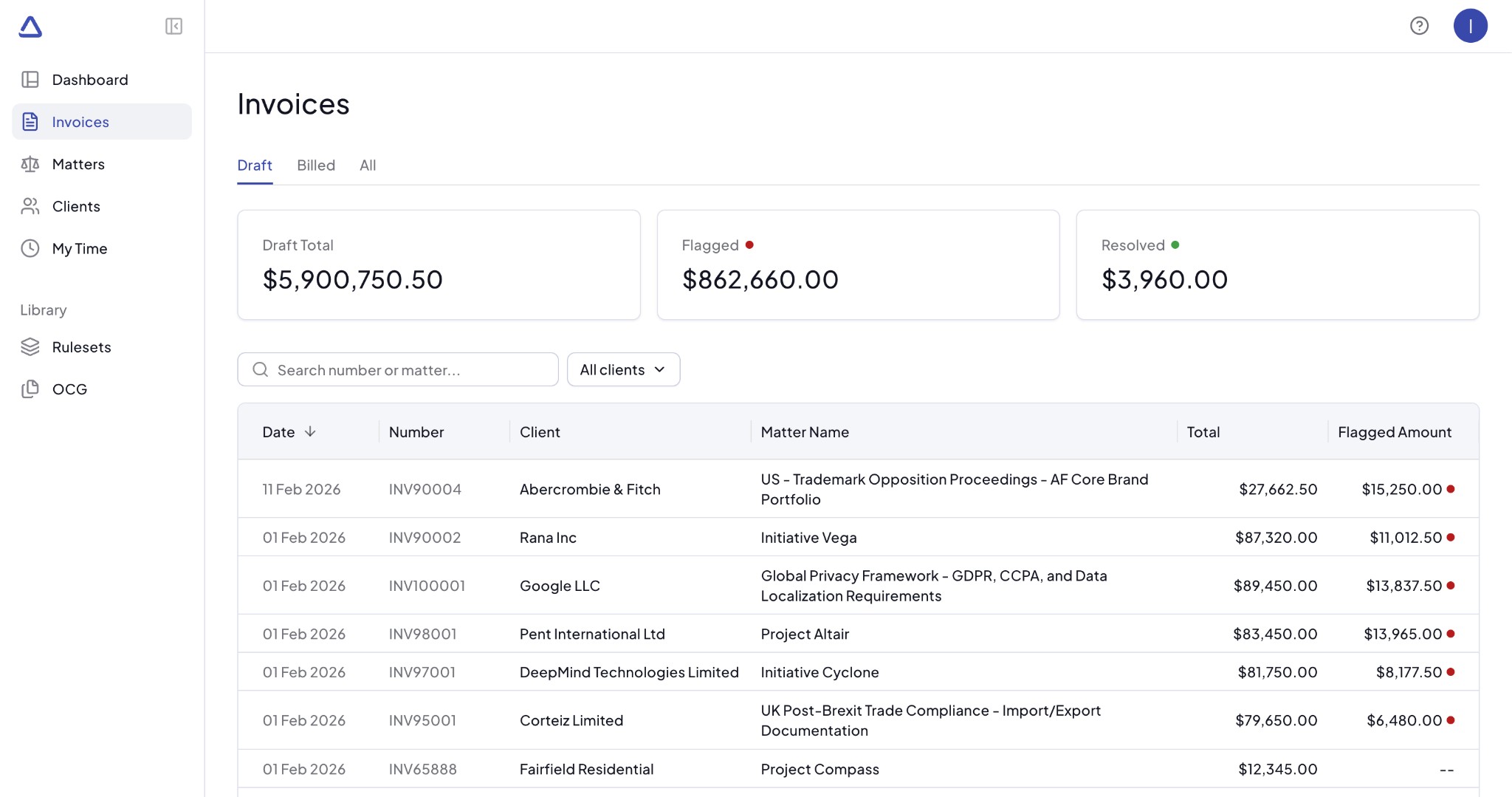
Summary cards
At the top of the list you will see three summary cards:
- Draft Total - the total billed amount across all draft invoices
- Flagged - the total amount that has been flagged by Antidote
- Resolved - the total amount where flags have been resolved
Amounts are shown in the selected display currency (by default, your firm's primary currency).
Draft invoices table
The table displays the following columns from left to right:
- Date - the date of the draft invoice
- Number - the draft invoice number from your finance system
- Client - the client name
- Matter Name - the matter associated with the draft invoice
- Total - the total billed amount on the draft invoice
- Flagged Amount - the amount that has been flagged by Antidote
Each draft invoice amount is shown in its original currency (the currency in which the invoice was recorded in your finance system).
Search and filter
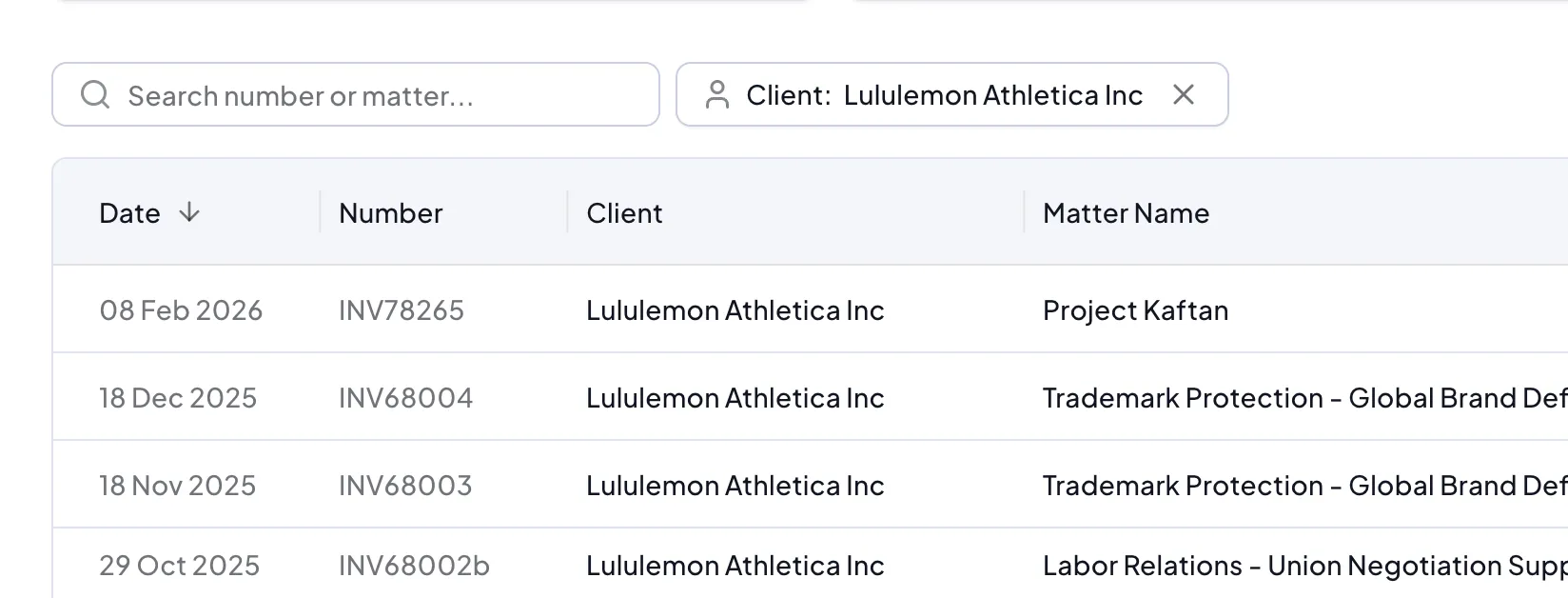
You can search for a draft invoice by number or matter name using the search box. You can also filter by client using the client filter.
The table can be sorted by clicking on any column header. By default, draft invoices are sorted by date with the most recent first.
Draft invoice detail page
Click on a draft invoice in the list to open the draft invoice detail page. At the top of the page you will see the invoice number, date, matter name, client name and total hours.
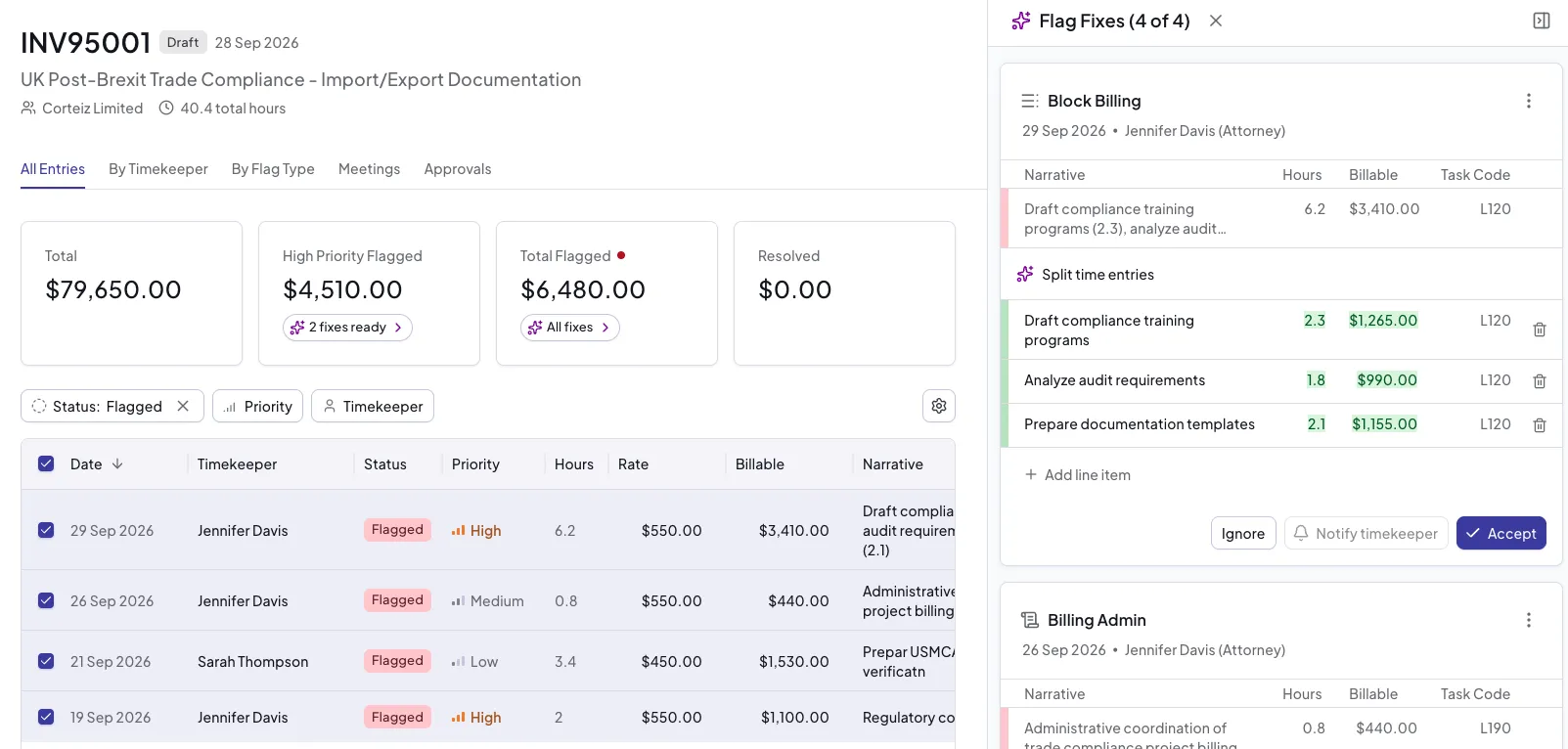
Depending on your firm's preferences, draft invoices may be editable or locked. If draft invoices are locked, actions such as accepting suggestions, ignoring flags, and notifying timekeepers are not available directly on the invoice.
Summary
The summary section shows four metrics for the draft invoice:
- Total - the total billed amount
- High Priority Flagged - the amount flagged by high priority flags. Click fixes ready to select the high priority flagged entries for review.
- Total Flagged - the total flagged amount, whatever the priority. Click All fixes to select all flagged entries for review.
- Resolved - the total amount that has been resolved
All Entries tab
The All Entries tab shows every time entry in the draft invoice in a table view. You can select entries to view their details in the sidebar, where you can review flags and act on suggestions.
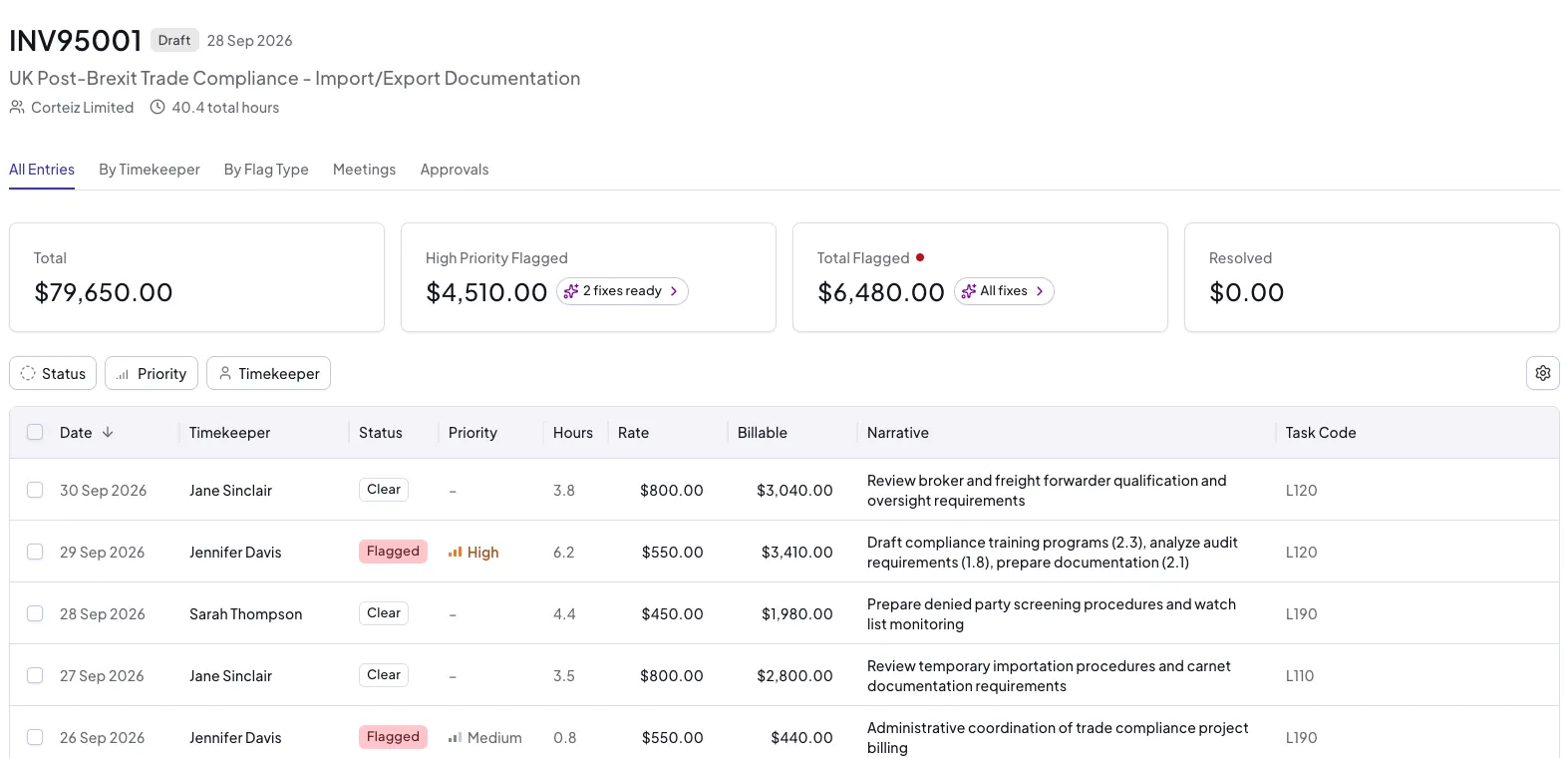
The table displays the following columns from left to right:
- Date - the date of the time entry
- Timekeeper - the timekeeper who recorded the entry
- Status - the current status of the entry
- Priority - the priority of the entry's flag, if it has one
- Hours - the hours recorded
- Rate - the billing rate applied
- Billable - the billable amount for the entry
- Narrative - the time entry narrative
- Task Code - the task code assigned to the entry, if task codes are enabled for the matter (see Task Codes)
You can filter the entries by Status, Priority, and Timekeeper, and use the settings button at the top right of the table to show or hide columns.
On a draft invoice, the following actions are available for flagged entries:
- Accept a suggestion to correct the time entry
- Ignore the flag if you believe the entry is correct
- Notify Timekeeper to ask the timekeeper to review and correct the entry. This sets the flag to high priority so it appears on the timekeeper's High Priority tab - see Notifying the timekeeper
For entries without flags, you can add a manual suggestion if needed.
For more information on flags and suggestions, see Flags and Suggestions.
Some entries may also show a status of Approval needed rather than, or alongside, a flag. Approvals are managed from the matter's Approvals tab rather than from the draft invoice. See Approvals for more detail.
By Timekeeper tab
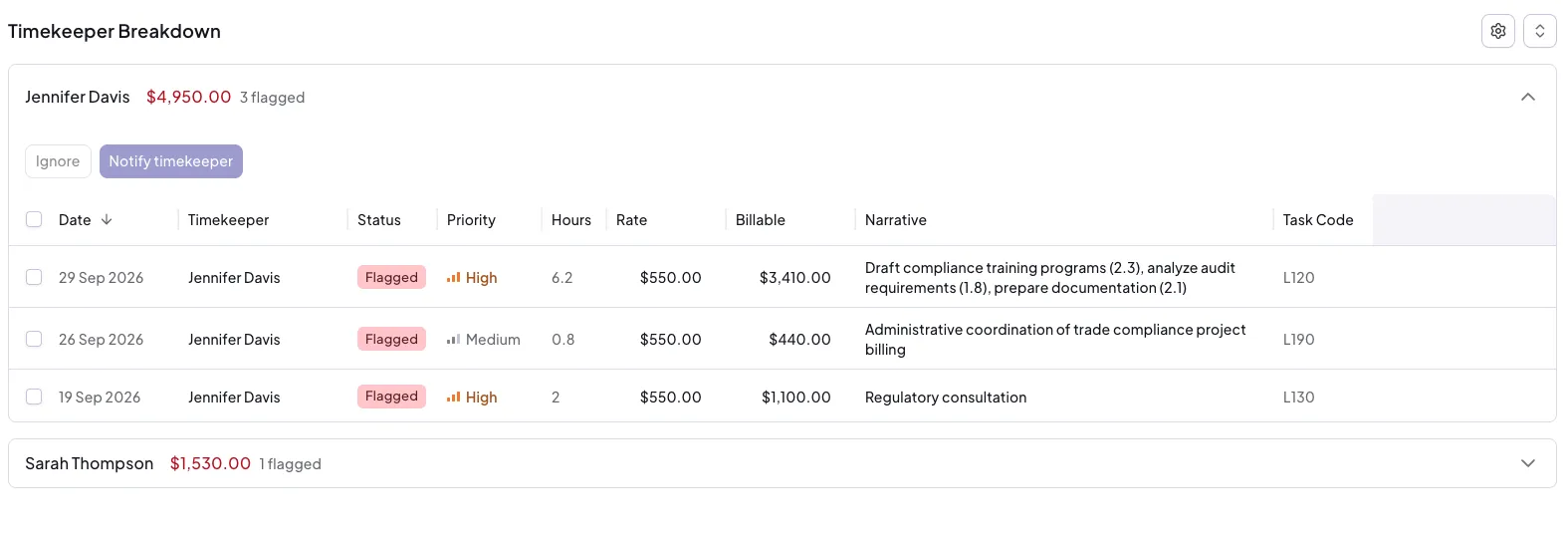 The By Timekeeper tab shows a chart of timekeepers by flagged amount, followed by a flag breakdown for each timekeeper.
Expand a timekeeper section to see their flagged entries and take action on them individually or in bulk.
By Flag Type tab
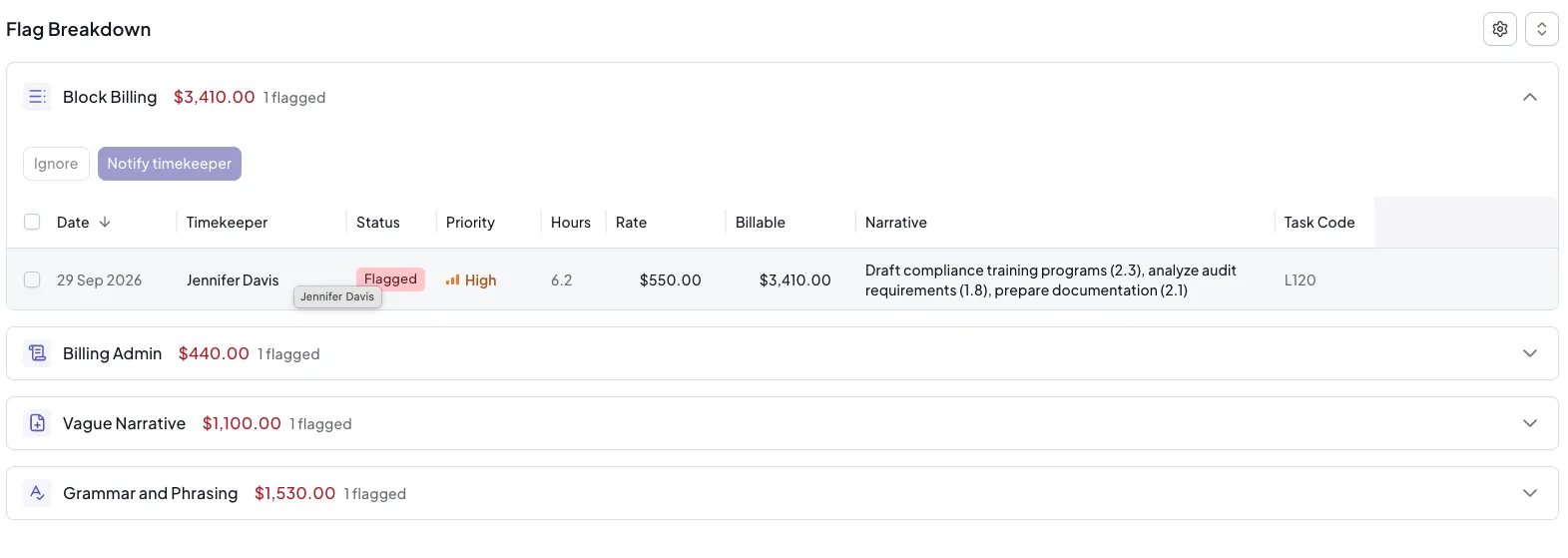 The By Flag Type tab shows a chart of flagged amounts grouped by flag type, followed by a breakdown for each type. This view lets you focus on specific categories of flags and resolve them in bulk.
Meetings tab
The Meetings feature is in alpha. The Meetings tab is only available if the meetings feature has been enabled for your firm.
The Meetings tab shows meetings previously detected on the matter that include time entries on this invoice. If draft invoices are locked for your firm, this view is read-only and you should open the meeting from the matter's Meetings tab to take action. If draft invoices are editable, you can act on entries here in the same way as elsewhere on the invoice.
For full details, see Meetings.