High Priority
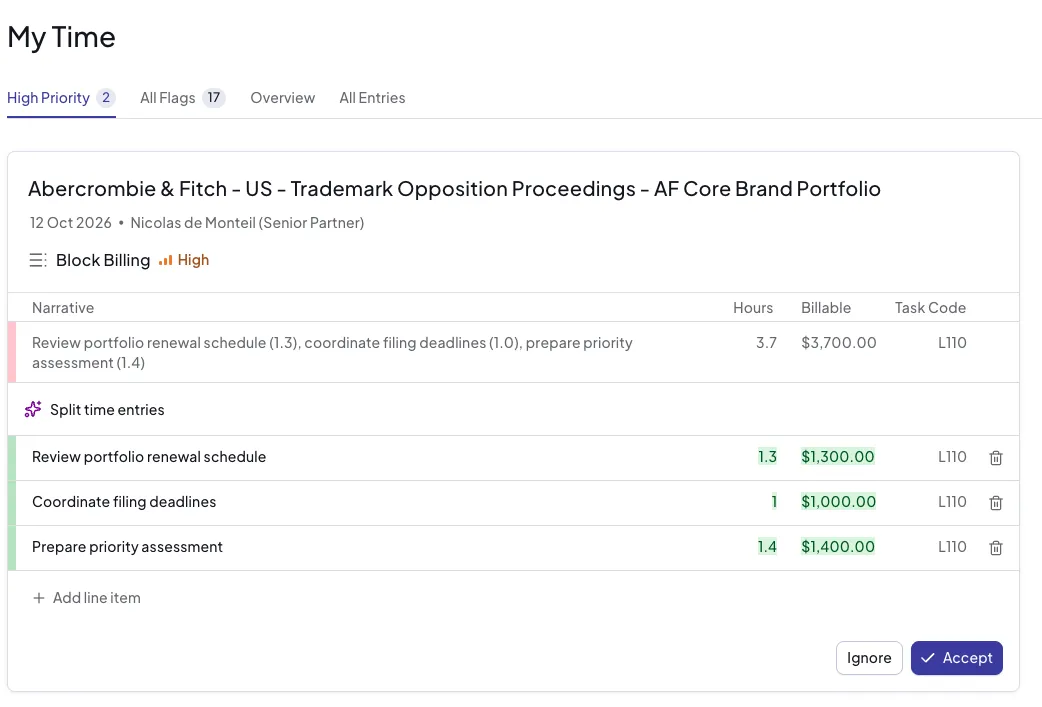
The High Priority tab on My Time shows high priority flags on your time entries. Start here, as these are the flags your law firm wants brought to your attention immediately. A flag is high priority when either:
- it was created by a rule your law firm has made high priority, or
- a colleague has asked you to review it using Notify Timekeeper.
My Time is only available to users with the timekeeper role. If you do not see My Time in the sidebar, contact your administrator.
Accessing High Priority
Navigate to My Time in the sidebar menu. The High Priority tab is the default view whenever you have high priority flags to review. Each tab shows a count of outstanding flags so you can see at a glance how many entries need attention.
The All Flags tab next to it shows every flag on your time entries, including the high priority ones.
Email notifications
You can choose to receive a High Priority email when new high priority flags are created on your time entries. Click the link in the email to go directly to the relevant entry in My Time. See Profile and Notifications to turn it on.
Reviewing high priority flags
Flags are grouped by matter, and each card shows the original entry with the Antidote suggested fix below it. If a colleague has already reviewed the entry before notifying you, the card shows what they did, for example "User forwarded an AI suggestion". You can edit the suggestion, then Accept or Ignore it, in the same way as on the All Flags tab - see Time entry cards for full details.
When there are no high priority flags to review, you will see a "You are up to date" message.