Time to Correct
The Time to Correct tab on My Time shows time entry flags that need your attention.
My Time is only available to users with the timekeeper role. If you do not see My Time in the sidebar, contact your administrator.
Email notifications
When new time entries need your attention, you will receive an email notification. Click the link in the email to go directly to the relevant entry in My Time.
Accessing Time to Correct
Navigate to My Time in the sidebar menu and select the Time to Correct tab. The tab shows a count of outstanding violations so you can see at a glance how many entries need attention.
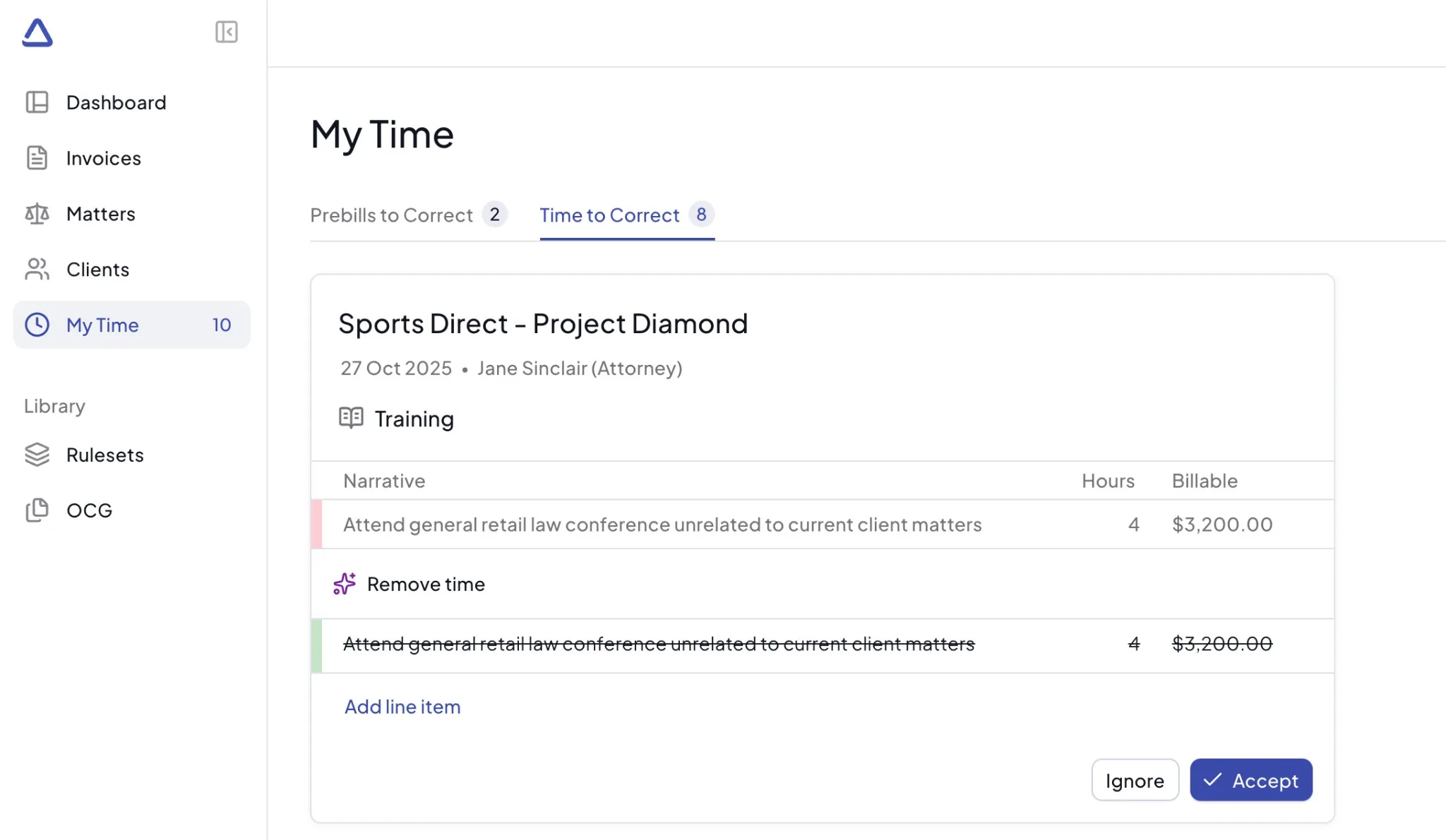
Time entry cards
Flags (violations) are grouped by matter. Each card shows the following information:
- Client and matter - the client name and matter name at the top of the card
- Date - the date of the time entry
- Rule category - the type of rule that was violated (for example, "Abbreviation" or "Grammar and Phrasing")
If another user has already reviewed the flagged entry, you will see an indicator showing what action was taken, e.g.:
"User changed a suggestion" - the user edited the suggested fix

"User forwarded an AI suggestion" - the user forwarded the original AI suggestion to you

Original entry
Each card displays the original time entry with a red highlight with the following columns:
- Narrative - the original narrative text. Click to expand if the text is truncated.
- Hours - the original hours billed
- Billable - the original billed amount
- Task Code - the original task code, if present
Suggested fix
Below the original entry, the Antidote suggested fix is shown in green highlight. The fix type can be one of:
- Update narrative - a corrected version of the narrative
- Split time entries - the entry split into multiple entries
- Remove time - the entry flagged for removal
For "Update narrative" and "Split time entries" fixes, each suggestion row shows the corrected narrative, hours, and billable amount. Changes from the original are highlighted.
If the total hours in the suggested fix do not match the original hours, a warning is displayed: "Total hours do not equal original hours." You will need to adjust the hours before accepting.
Editing suggestions
You can edit suggestions before accepting them:
- Click on the narrative text to edit it
- Click on the hours value to change it. The billable amount recalculates automatically.
- Use the menu on a suggestion row to select Remove item and delete it
- Click Add line item to add a new entry row with your own narrative and hours
Ignore and Accept actions
Each time entry card has two actions:
- Ignore - dismiss the violation if you believe the original entry is correct
- Accept - accept the suggested fix. This is disabled if the total suggestion hours do not match the original hours, or if you are currently editing a field.
When there are no violations to review, you will see a "You are up to date" message.