Partners
Partners are given access to the matters and client records for a set of clients and also have access to their own time entries.
Adjusting Notification Settings
By default all emails will be enabled and these will be focused on the time you record. You can adjust your notification settings to change the frequency of the emails or, if you only want to use Antidote to review other's time, disable them.
Click on your initial in the top right and select Settings and Notification Preferences. For full details see Profile and Notifications.
Reviewing your Matters
The matters you have access to in Antidote are accessed by the Matters section of the left hand navigation. From here you can search for a matter by name or number/ID and filter by client.
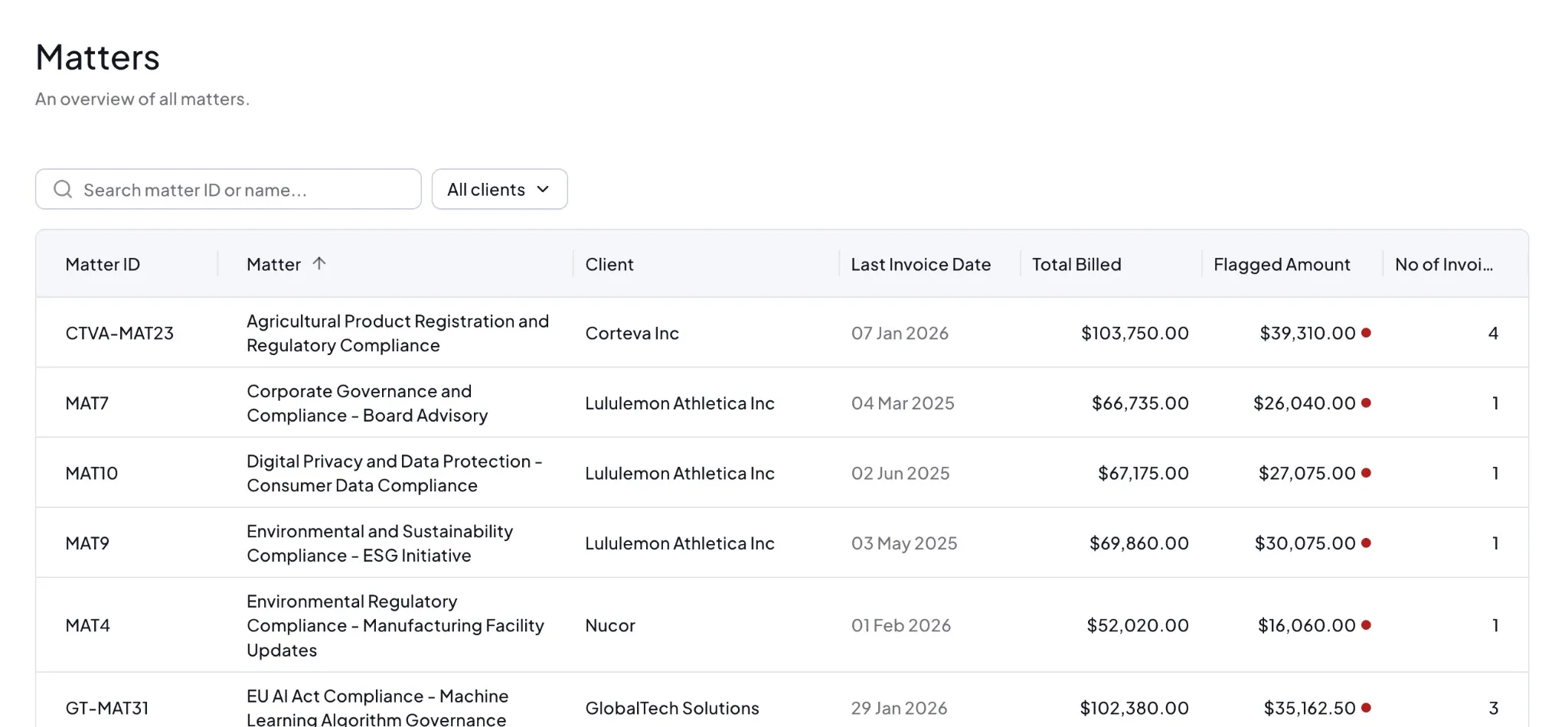
Click on a matter to review the time within it. On the overview tab you will find a summary of the entries in Antidote. To immediately get on with fixing flags, click fixes ready on the High Priority Flagged total to start with the high priority flags, or All fixes to work through every flag. Or to review flags by timekeeper or flag type use the tabs.
If any rules require approval, for example travel that needs client consent, the matter will also have an Approvals tab. See Approvals for how to approve or dismiss these.
Reviewing your Team
Select Timekeepers in the menu to find the timekeepers (fee earners) that have recorded time on matters you have access to. You can search by name or timekeeper code/number. Clicking on the timekeeper will provide an overview of the flags that have been created for that timekeeper and whether they are corrected.
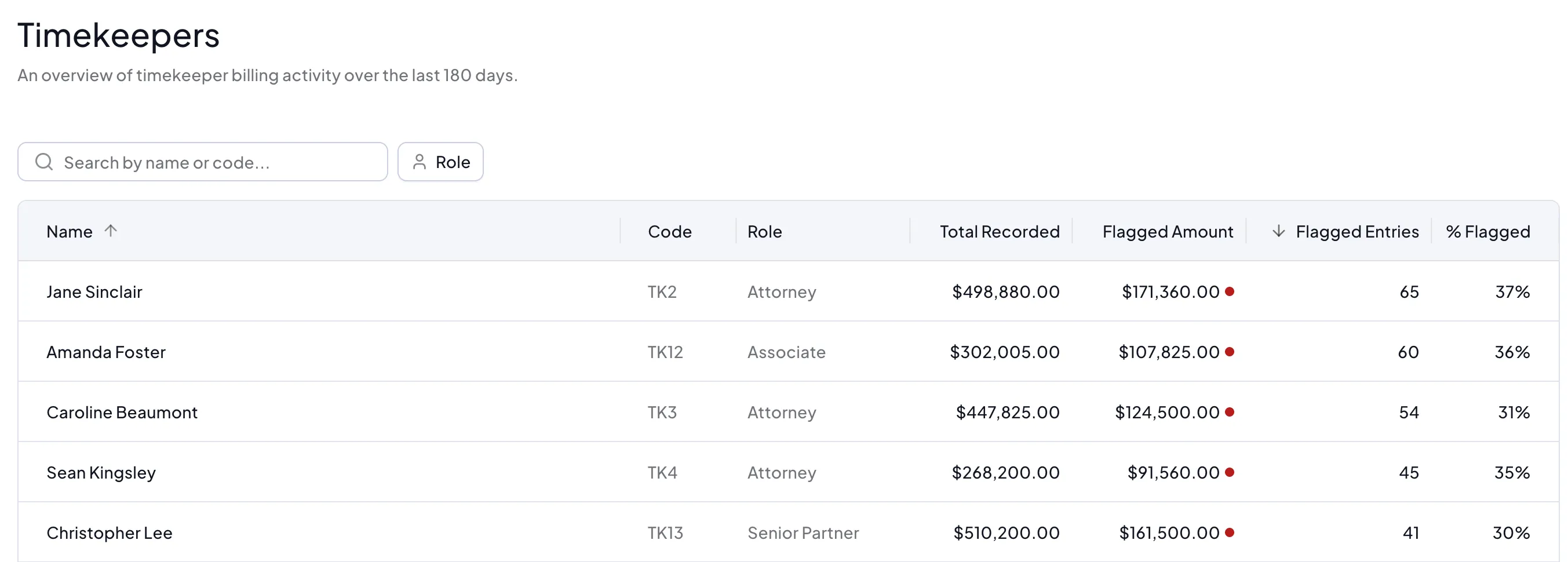
To look at all the time recorded in Antidote for that timekeeper click on the All Entries tab. You can filter by status and whether the time is still editable.
Clients and Rulesets
Depending on your organization you may or may not be involved in managing client or payor rulesets. You will have access to the client pages that provide overviews of each client's data in Antidote. In the top corner you can select Manage Rulesets to see the rules applied to this client.
