Common Rules
Rulesets are created from the rules available within your law firm. Some of the common rules are described below but your law firm may use different rules. For more details on the rules for your firm contact your administrator or [email protected].
Some rule types have a Requires prior approval checkbox, so that entries matching the rule need approval instead of, or alongside, a flag. This option isn't available on every rule type - see Approvals for more detail.
Every rule also has a priority of High, Medium, or Low, which controls how urgently its flags are brought to your team's attention - see Rule Priority.

Safety
Checks for offensive, discriminatory, or unprofessional language in time entries.
If clients have cases that may legitimately include references to difficult subjects this rule may flag these time entries.
Block Billing
Identifies when multiple tasks are combined into one entry. This is based on the analysis of the work and not on just the punctuation used.
Block billing checks will not be applied to entries shorter than the minimum entry length. The default is one hour and can be changed when creating or editing a ruleset.
If time has been included with each task, for example in brackets, Antidote will populate the time amounts when splitting the tasks. Otherwise time will need to be allocated between tasks before accepting.
Internal Communications
Detects time spent on internal communications where the value to the client has not been captured in the narrative.
Research
Flags time spent investigating legal precedents, case law, or statutes.
Handover
Detects time spent transferring case knowledge between lawyers.
Travel
Identifies time spent traveling for work-related purposes.
Travel can often be valid with pre-approval. Rather than relying on the narrative alone, consider ticking Requires prior approval on this rule so it can be tracked and confirmed on the entry's Approvals tab.
Training
Flags time spent on professional development or learning activities.
Billing Admin
Identifies time spent on preparing fee quotes, managing invoices and other billing tasks.
Clerical Admin
Identifies time spent on clerical tasks such as scheduling appointments and preparing documents.
Vague Narrative
Identifies entries that lack specific information about the work performed.
One of the most common problems is not capturing the value to the client and the relevance of the particular task performed. Antidote will provide information on what detail is missing for the timekeeper to update the entry.
Name Formatting
Checks that names are formatted consistently as per your law firm's guidelines.
Grammar And Phrasing
Checks for grammatical errors, tense consistency, and proper sentence structure.
Since narratives are often concise the grammar and abbreviation rules can flag a lot of entries. Consider testing on a low volume client or contact [email protected] for help in calibrating the rule.
Abbreviation
Identifies and expands legal terminology abbreviations in entries.
Task Code
Checks that time entries use a valid task code from the task code set for the matter. This rule requires your finance system to be connected to Antidote with task code mapping configured - see Task Codes.
When adding the rule, you can leave the default task code set unset so the rule uses the task code set on the matter, or choose a default task code set to act as a fallback. The fallback code set is used when a matter has no task code set of its own.
Only set a fallback task code set where you know that every matter using the ruleset should use that single code set. If matters on the ruleset use different code sets, leave the fallback unset so each matter uses its own task code set.
Maximum Hours
Where an outside counsel guideline restricts the maximum number of hours that can be billed in a day, this adds the Maximum Hours rule to the ruleset.
If a timekeeper has worked more than the specified number of hours across any of the client's matters within a day, a client-level approval is created. It is visible on the client's Approvals tab, and also against the timekeeper on their own Approvals tab.
If the ruleset applies to a client group, the check is still done per client, not across all the clients in the group.
Restricted Roles
Prevents more than a set number of timekeepers from a role group billing on a matter, or bans certain roles from billing on the matter altogether.
Configure one or more role groups, each combining the roles that should be treated together (for example, grouping Partner and Senior Partner as a "Partners" group, as per your outside counsel guidelines), and set the maximum number of timekeepers from that group allowed to bill on the matter. Set the maximum to 0 to ban a role group from billing on the matter entirely.
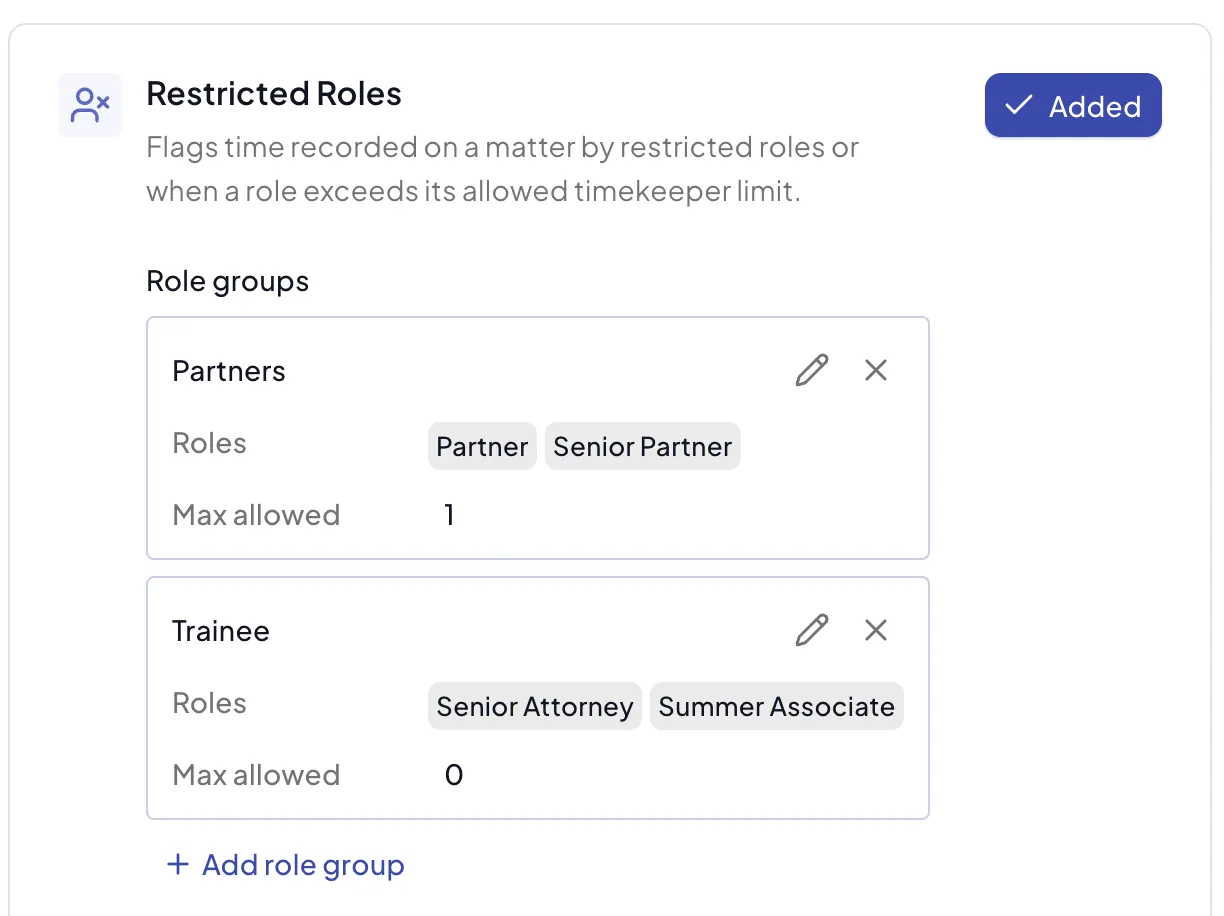
While the number of timekeepers billing in a group stays within its maximum, no approval is created. Once the maximum is exceeded, an approval is created for every timekeeper in that group who has billed on the matter, so you can decide which of them should or shouldn't have billed and approve or dismiss each one - see Approvals.
Once a timekeeper's approval has been approved or dismissed, they won't trigger a new approval for continuing to bill on the matter. If the limit is later exceeded again by a different timekeeper, a new approval is created for that timekeeper only.
Antidote has no way to remove a timekeeper's time entries from a matter. If you decide a timekeeper should not have billed on the matter at all, remove their time entries in your finance system rather than working through each entry individually in Antidote.