Ruleset Versions
Some rulesets support versioning, which lets you prepare rule changes in advance and activate them automatically on a specific date. This page explains how versioning works and when it applies.
Rulesets that support versioning
Global and Custom rulesets are edited in place and don't support versioning. When you change a rule, the change takes effect right away.
Client, Client Group, Payor, and Payor Group rulesets work differently and support versioning. Instead of editing the ruleset directly, you create versions, each with its own set of rules and an effective date.
What is a version?
A version is a named set of a ruleset's rules, tied to an effective date.
Each version includes:
- Version name - a label to identify this version (for example, "2026 OCG Update" or "v3")
- Effective date - the date when this version should become active
- Rules - the set of billing rules included in this version
- Created by - the user who created the version
- Created on - the date the version was created
You can create multiple versions for the same ruleset. Each version is independent and has its own rules and effective date.
The versions table for a ruleset shows all versions, scheduled, active, and archived. You can sort and filter the table to find specific versions.
Version statuses
Every version has one of three statuses.
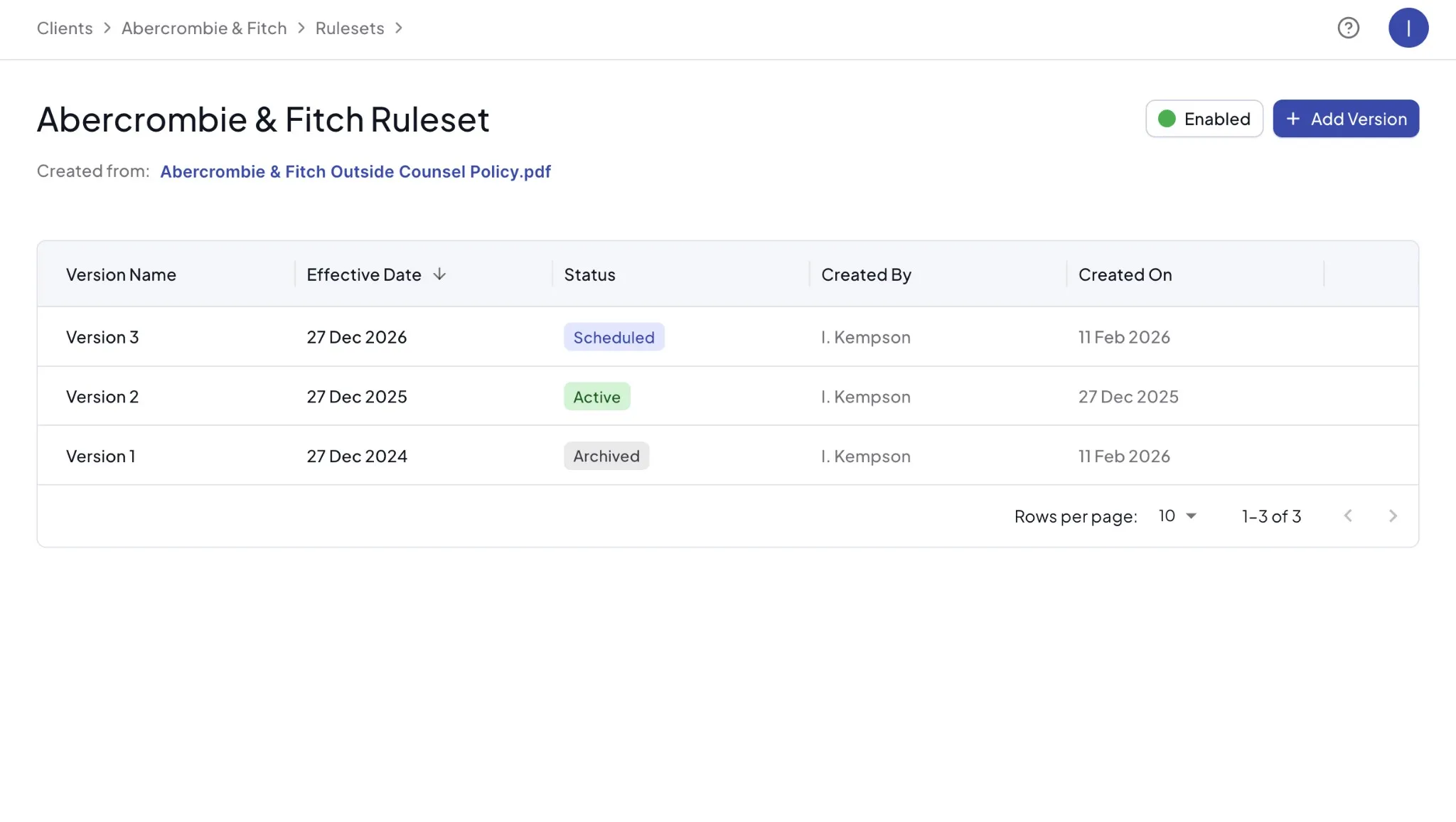
Scheduled
The version's effective date is in the future. The version has been configured but is not yet in use. Scheduled versions do not affect billing reviews.
This is the default status when you create a new version with a future effective date.
Active
The version's effective date has arrived. This version is now the one used during billing reviews for the associated client, client group, payor, or payor group.
Only one version can be active at a time for a given ruleset.
Archived
A previously active version that has been replaced by a newer version. Archived versions are kept for reference and provide an audit trail of past guideline changes.
Versions follow the Scheduled, Active, Archived lifecycle automatically. You do not need to manually change statuses.
Creating a new version
From a manually created ruleset
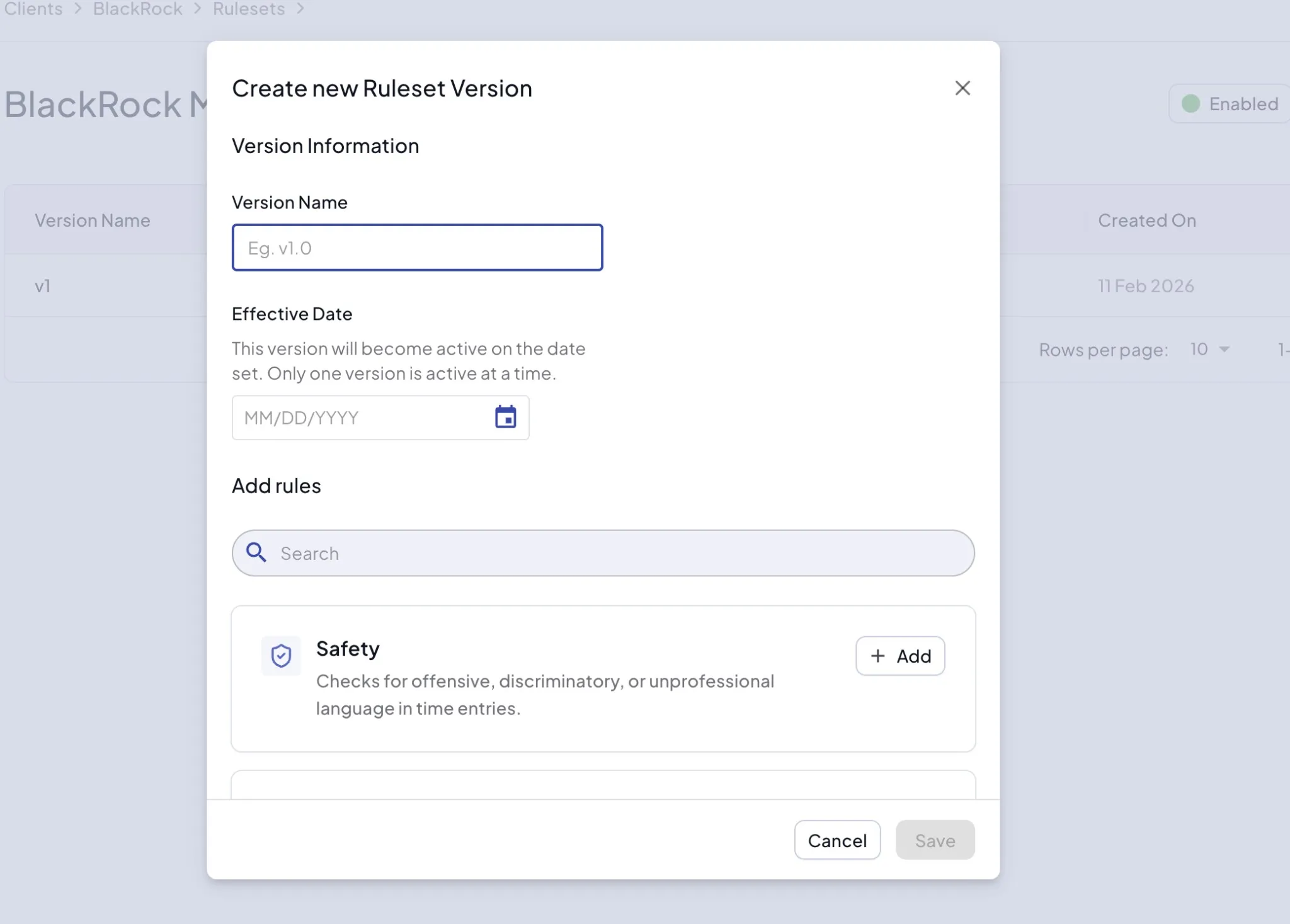
- Navigate to the client, client group, payor, or payor group detail page.
- Click the Manage Rulesets button.
- Click on the ruleset you want to version.
- Click Add Version.
- Enter a version name and effective date.
- Select rules.
- Save version.
From an OCG-created ruleset
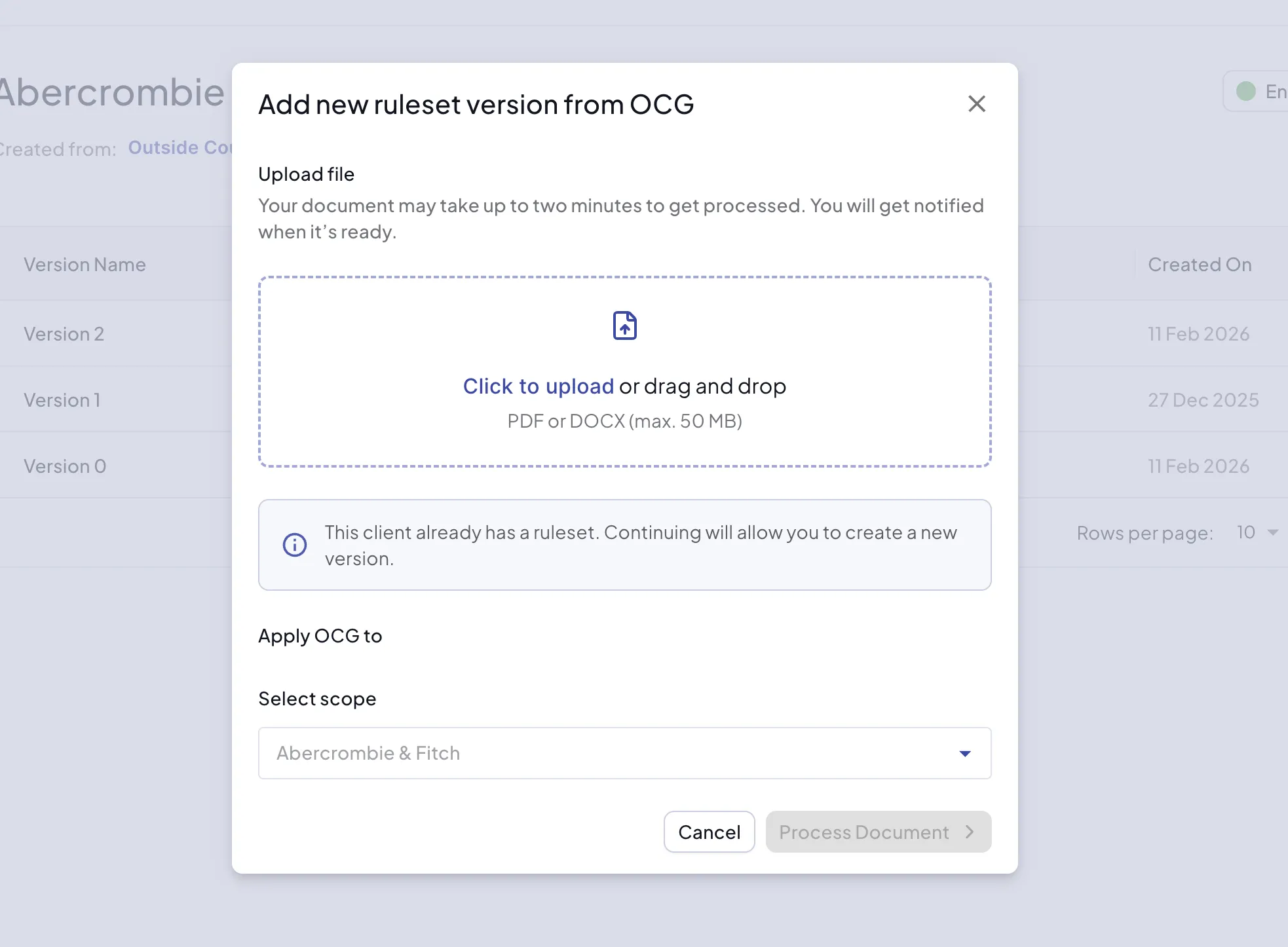
- Navigate to the client, client group, payor, or payor group detail page.
- Click the Manage Rulesets button.
- Click on the ruleset you want to version.
- Click Add Version.
- Upload the new OCG document (PDF or DOCX, max 50 MB).
- Click Process Document and wait for processing to complete.
- Review the extracted rules and citations and make any adjustments.
- Name and save version.
The new version will appear in the versions table with a Scheduled status until its effective date.
Editing a version
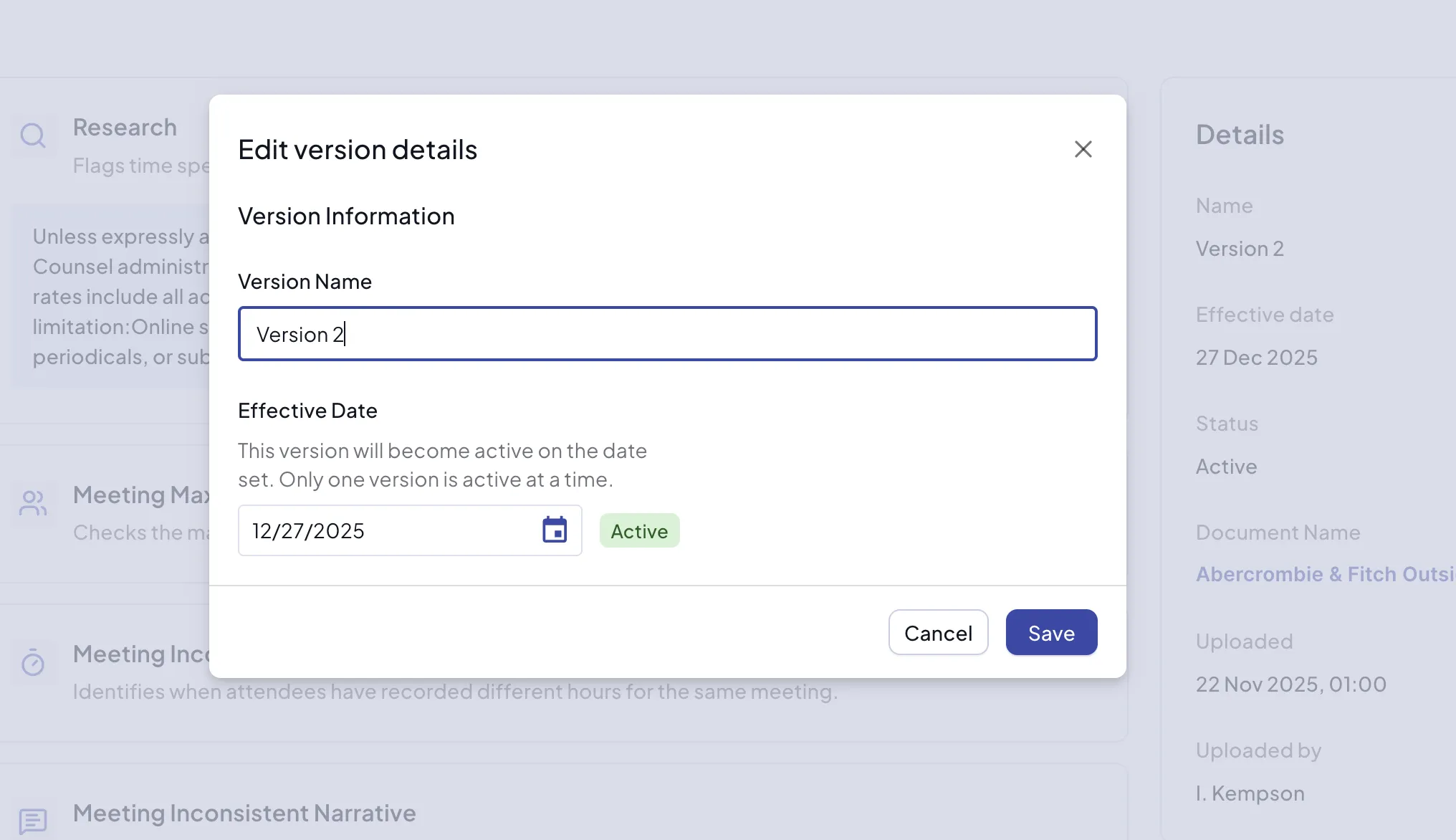
You can edit an Active or Scheduled ruleset version's name, effective date, and rules at any time.
To edit a version:
- Navigate to the version detail page.
- Click the Edit button.
- Update the version name, effective date, or rules as needed.
- Save your changes.
When to use versioning
Versioning is useful when:
- A client or payor issues new Outside Counsel Guidelines (OCGs) — create a new version with rules matching the updated guidelines and set the effective date to when the new OCGs take effect.
- You want to prepare changes in advance — build and review a new version without impacting current billing reviews. The new rules only take effect on the scheduled date.
- You need an audit trail — archived versions provide a history of what rules were in effect at any point in time.
- You want to avoid manual cutovers — versions activate automatically, so there is no need to remember to swap rules on a specific date.
To learn about rulesets and how to create them, see Understanding Rulesets.