Pre-bills
Pre-bills are draft invoices that contain time entries ready for review before final billing. In Antidote, pre-bills allow you to review flagged time entries, accept or ignore suggestions, and notify timekeepers of issues, all before an invoice is sent to the client. Pre-bill and draft invoice are used interchangeably.
Draft invoices (pre-bills)
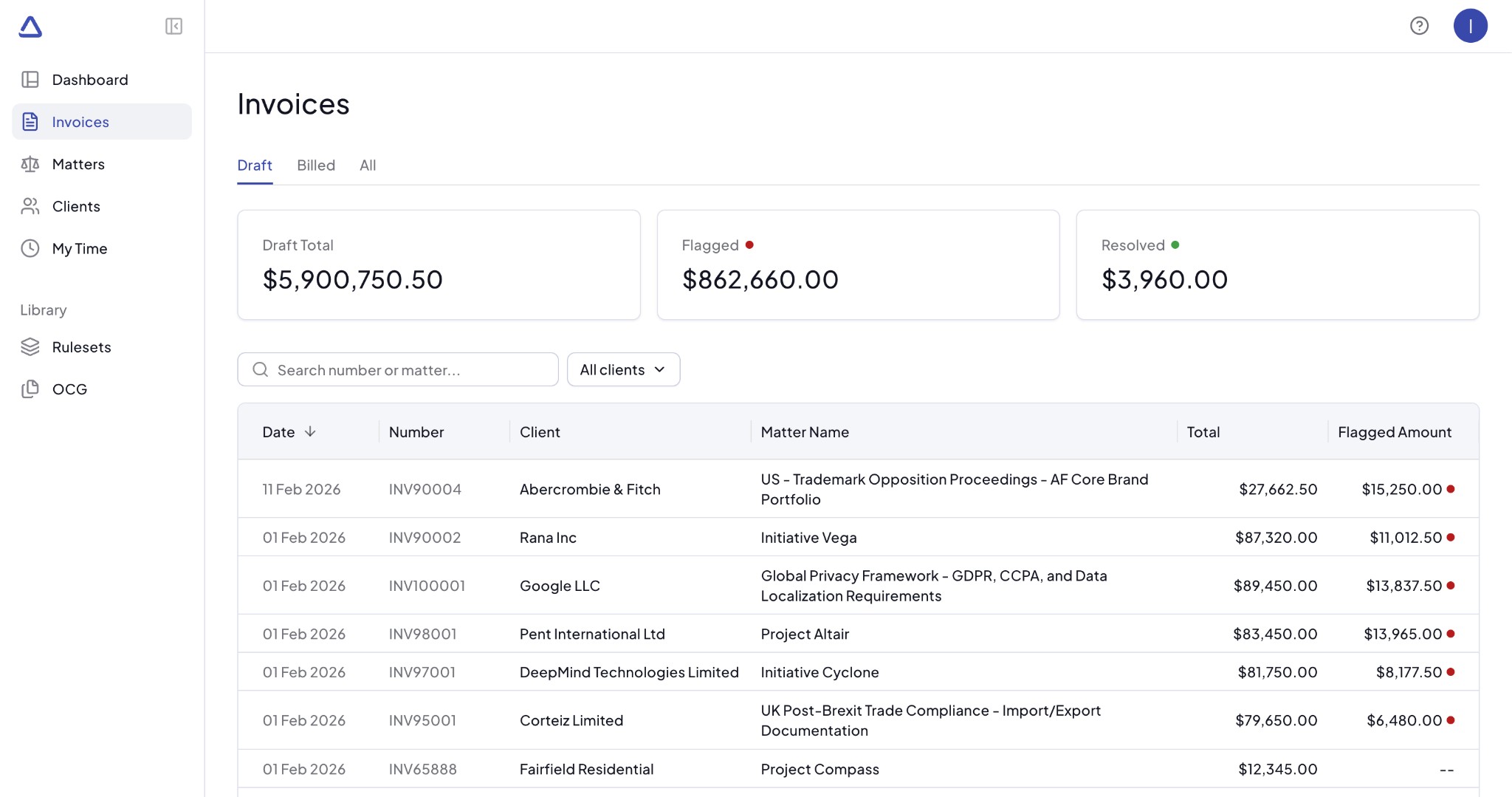
Navigate to Invoices in the menu to see all pre-bills and invoices. The Draft tab shows only pre-bills (draft invoices that have not yet been finalized).
Summary cards
At the top of the list you will see three summary cards:
- Total Draft - the total billed amount across all pre-bills (draft invoices)
- Flagged - the total amount that has been flagged by Antidote
- Resolved - the total amount where flags have been resolved
Amounts are shown in the selected display currency (by default, your firm's primary currency).
Pre-bills table
The table displays the following columns from left to right:
- Date - the date of the pre-bill
- Number - the pre-bill number from your finance system
- Client - the client name
- Matter Name - the matter associated with the pre-bill
- Total Amount - the total billed amount on the pre-bill
- Flagged Amount - the amount that has been flagged by Antidote
Each pre-bill amount is shown in its original currency (the currency in which the invoice was recorded in your finance system).
Search and filter pre-bills
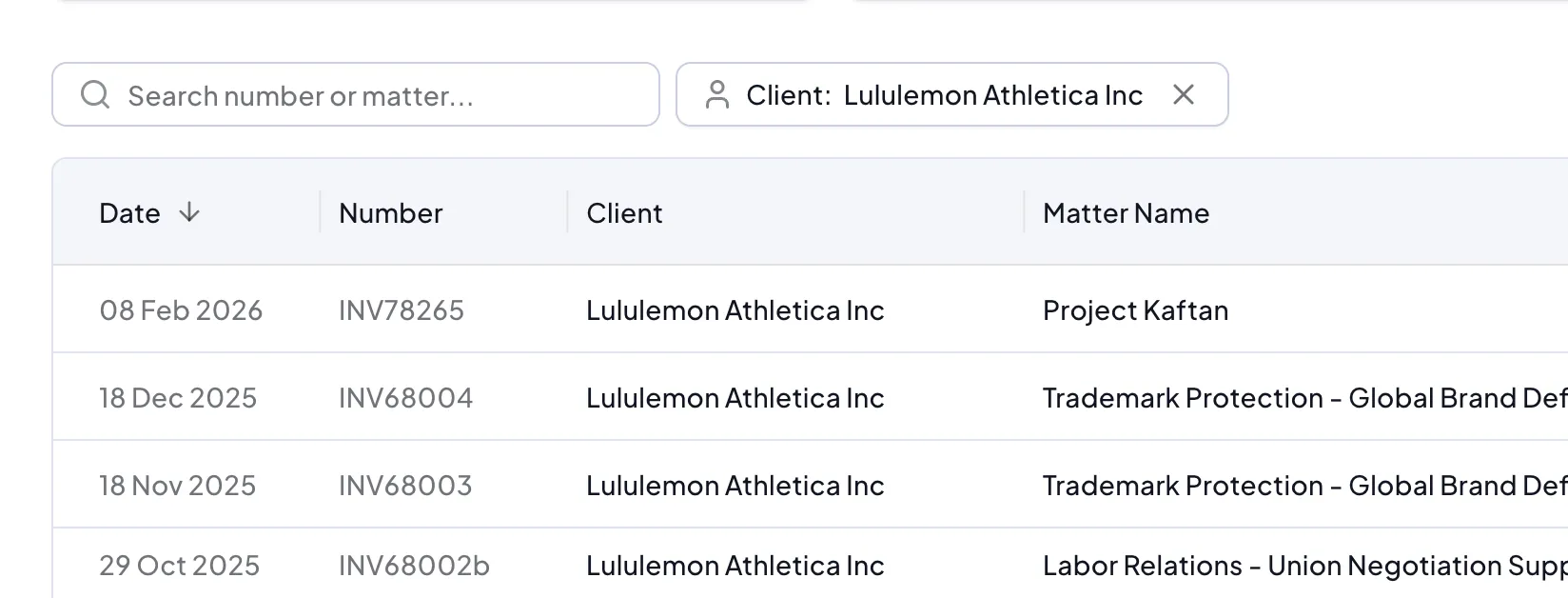
You can search for a pre-bill by number or matter name using the search box. You can also filter by client using the client filter.
The table can be sorted by clicking on any column header. By default, pre-bills are sorted by date with the most recent first.
Pre-bill detail page
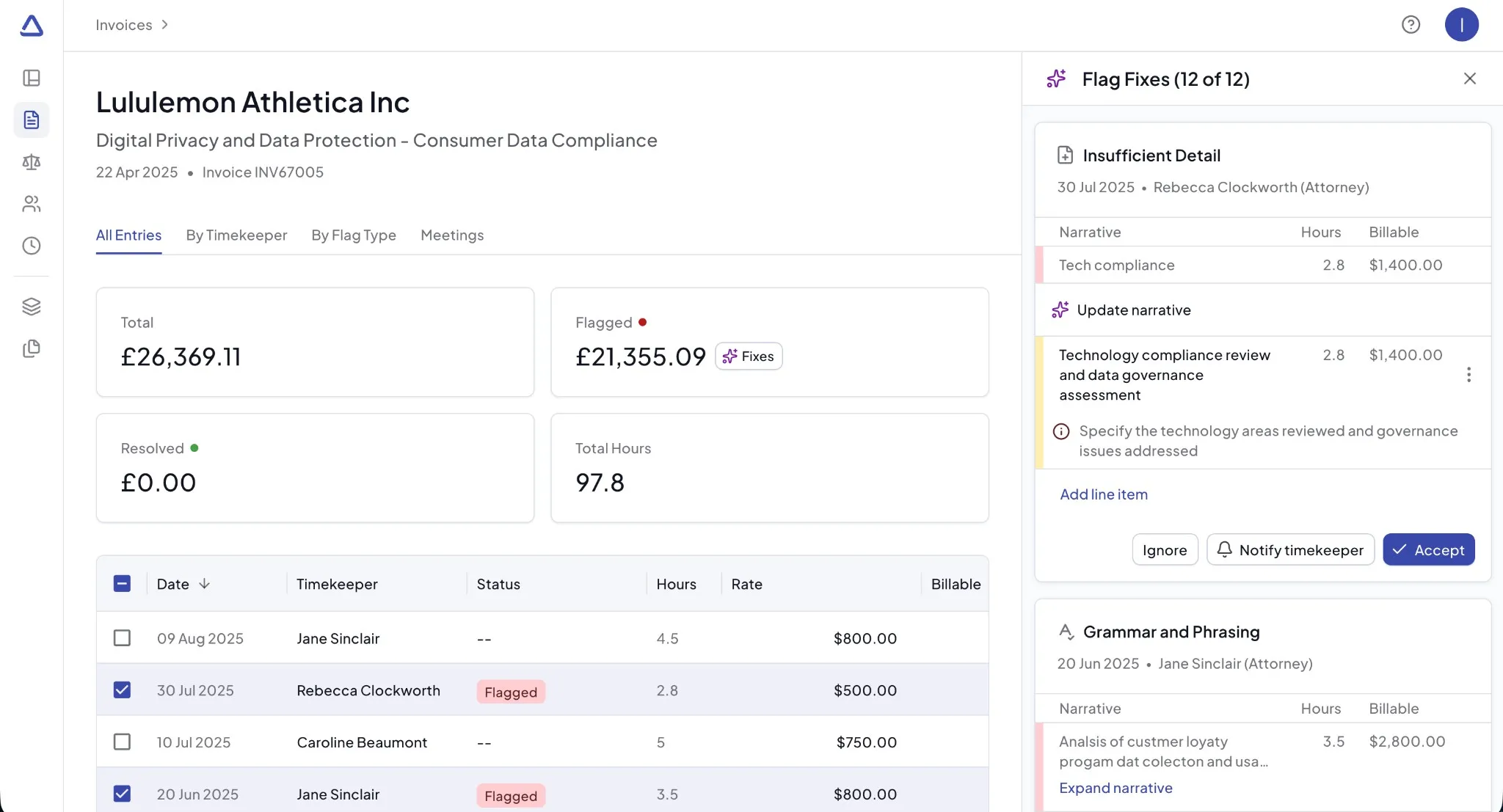
Click on a pre-bill (draft invoice) in the list to open the pre-bill detail page. At the top of the page you will see the client name, matter name, date and invoice number.
Summary
The summary section shows four metrics for the pre-bill:
- Total - the total billed amount
- Flagged - the total flagged amount. If there are any flags, a Fixes button will appear that selects all flagged entries for review.
- Resolved - the total amount that has been resolved
- Total Hours - the total hours billed on the pre-bill
All Entries tab
The All Entries tab shows every time entry in the pre-bill in a table view. You can select entries to view their details in the sidebar, where you can review flags and act on suggestions.
On a pre-bill (draft status), the following actions are available for flagged entries:
- Accept a suggestion to correct the time entry
- Ignore the flag if you believe the entry is correct
- Notify Timekeeper to send an email asking the timekeeper to review and correct the entry
For entries without flags, you can add a manual suggestion if needed.
For more information on flags and suggestions, see Flags and Suggestions.
By Timekeeper tab
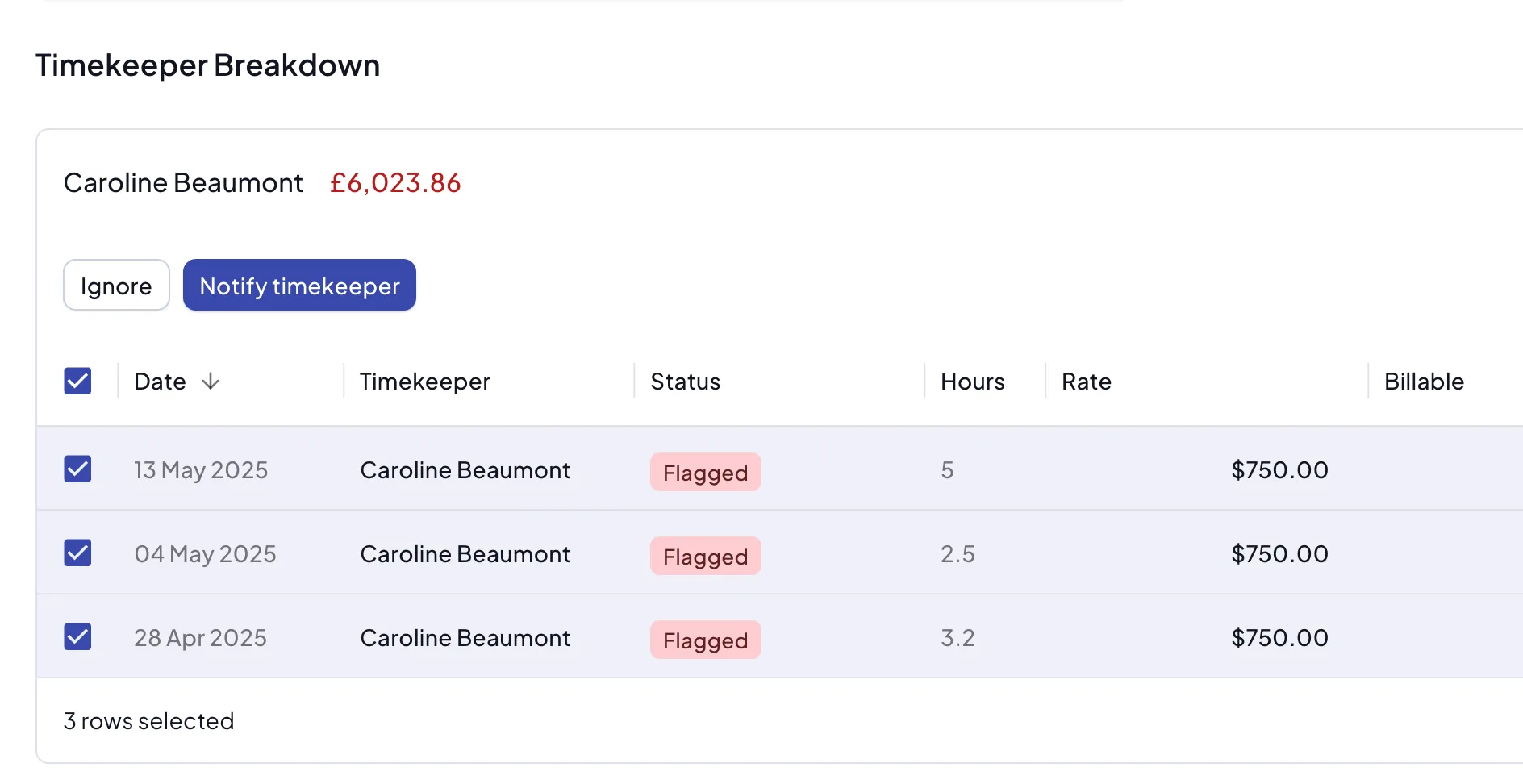 The By Timekeeper tab shows a chart of timekeepers by flagged amount, followed by a flag breakdown for each timekeeper.
Expand a timekeeper section to see their flagged entries and take action on them individually or in bulk.
By Flag Type tab
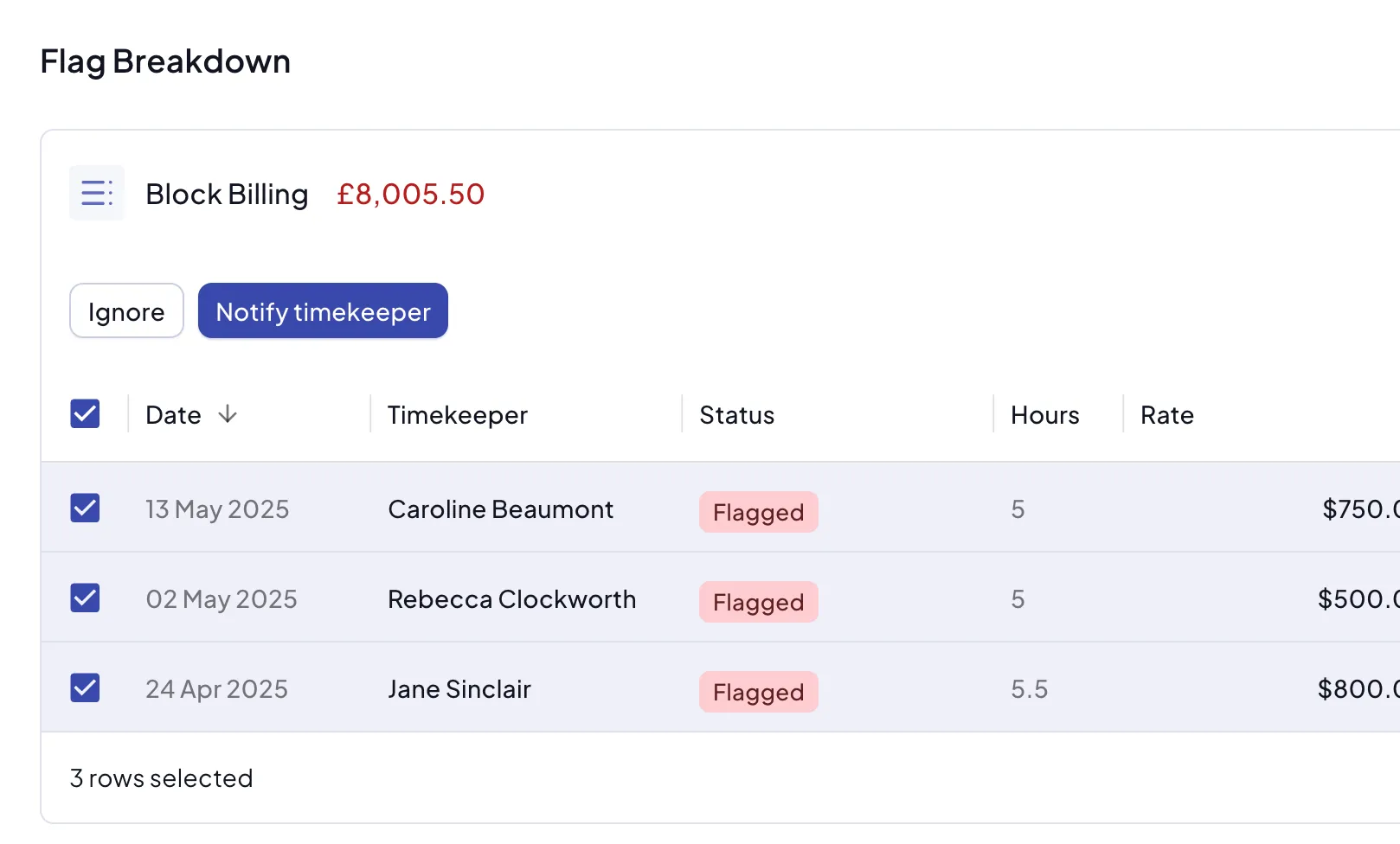 The By Flag Type tab shows a chart of flagged amounts grouped by flag type, followed by a breakdown for each type. This view lets you focus on specific categories of flags and resolve them in bulk.
Meetings tab
The Meetings feature is in alpha. The Meetings tab is only available if the meetings feature has been enabled for your firm.
The Meetings tab shows meetings where multiple time entries were recorded. You can review these entries for potential issues such as timekeeper limits being exceeded, and take action to correct, ignore, or remove entries from a meeting.
For full details, see Meetings.