Billed Invoices
Invoices are finalized pre-bills that have been billed to the client. Once a pre-bill moves to billed status it becomes read-only in Antidote. You can view the time entries and flags but you can no longer make changes.
Billed invoices
Navigate to Invoices in the menu and select the Billed tab to see only finalized invoices.
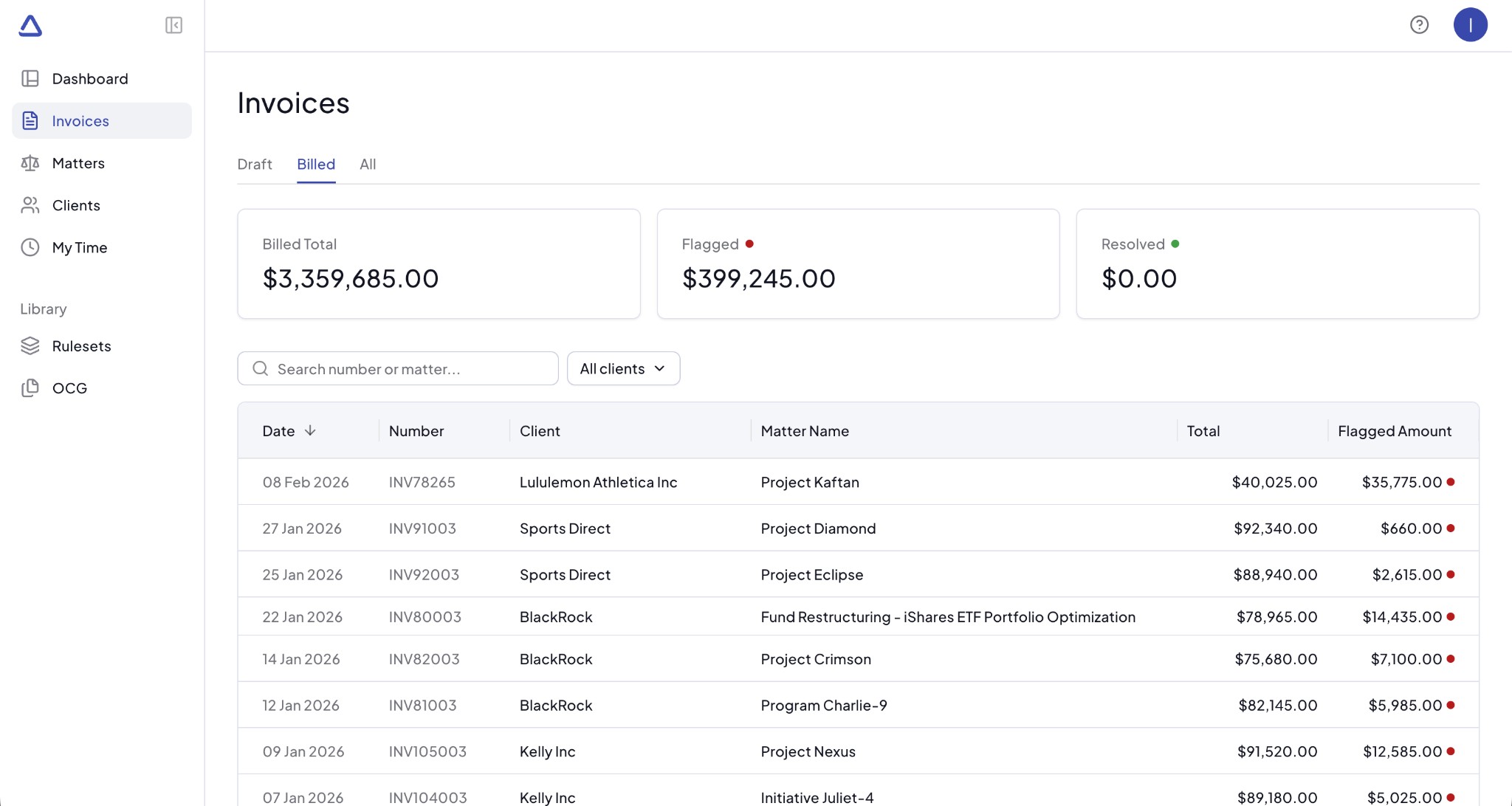
Summary cards
The same three summary cards appear at the top of the list, filtered to billed invoices only:
- Total Billed - the total billed amount across all finalized invoices
- Flagged - the total amount that was flagged
- Resolved - the total amount where flags were resolved before billing
Amounts are shown in the selected display currency (by default, your firm's primary currency).
Billed invoices table
The table displays the following columns from left to right:
- Date - the date of the invoice
- Number - the invoice number from your finance system
- Client - the client name
- Matter Name - the matter associated with the invoice
- Total Amount - the total billed amount on the invoice
- Flagged Amount - the amount that was flagged by Antidote
Each invoice amount is shown in its original currency (the currency in which the invoice was recorded in your finance system).
Search and filter
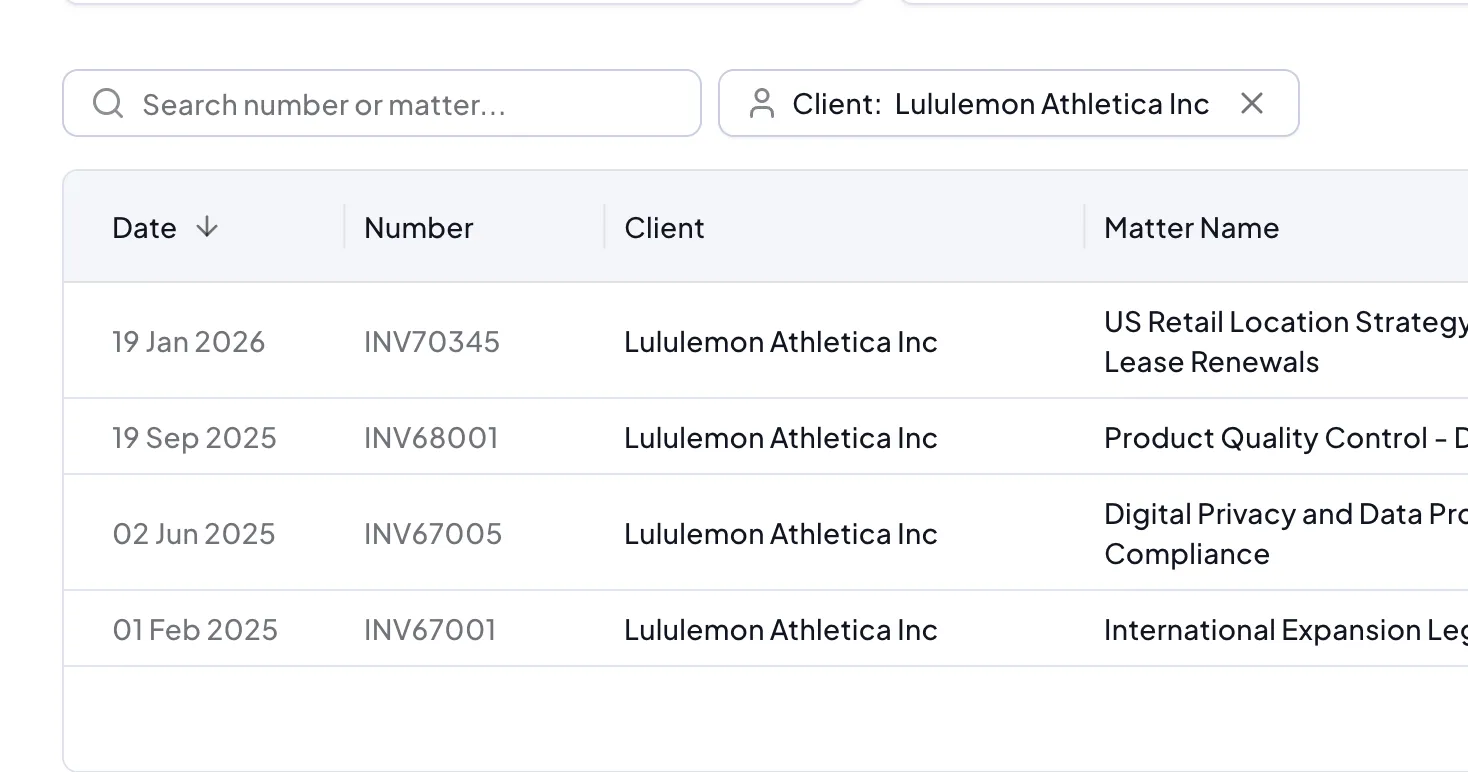
Searching and filtering work the same way as on the Draft tab. You can search by invoice number or matter name and filter by client.
Billed invoice detail page
Click on a billed invoice in the list to open the invoice detail page. The page has the same layout as a pre-bill detail page. You will see the client name, matter name, date, invoice number, summary cards and the same tabs.
Read-only view
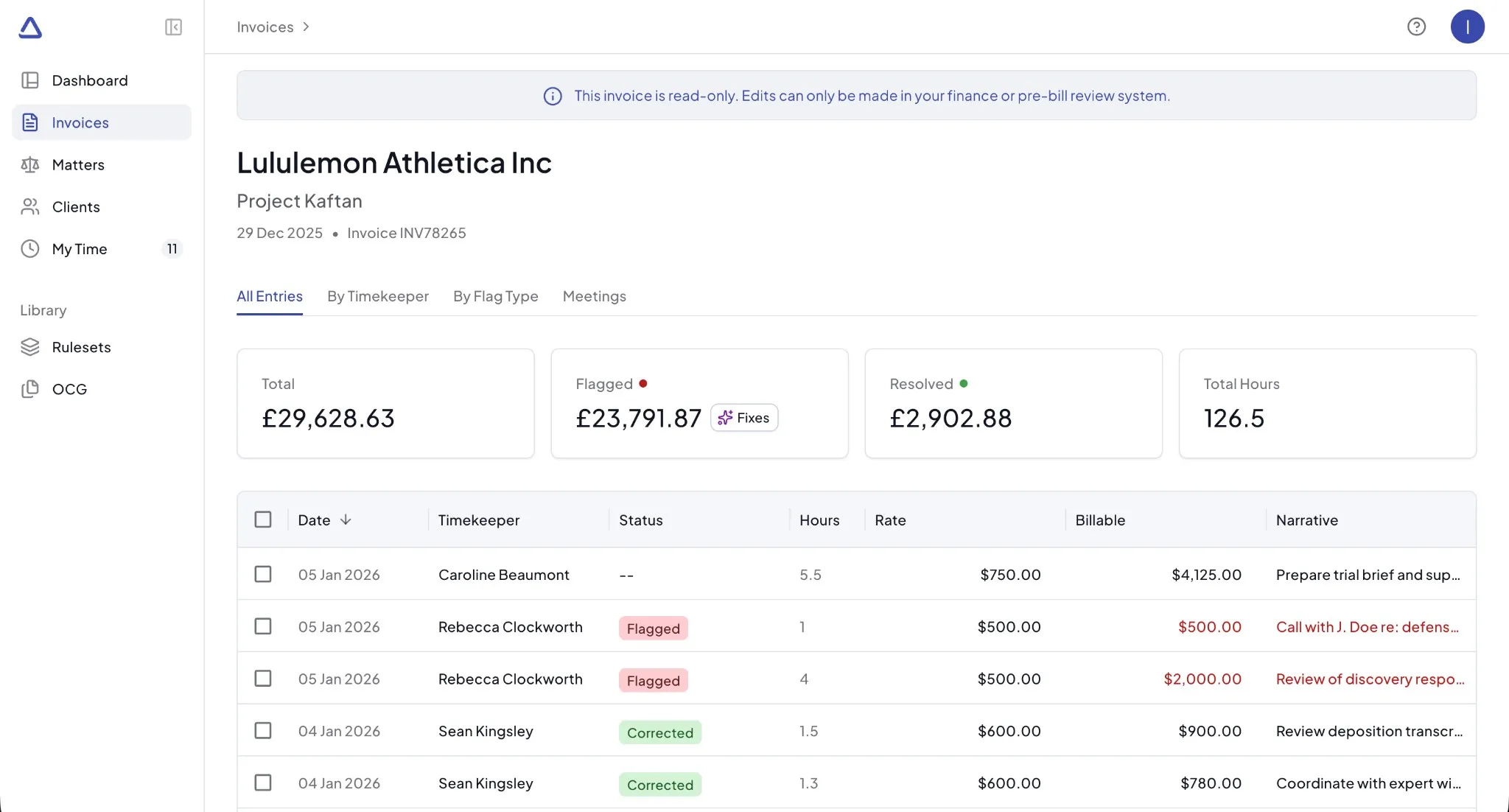 Because the invoice has already been billed, all actions are disabled. You cannot accept suggestions, ignore flags, notify timekeepers, or add manual suggestions. The time entries and their flags are shown for reference only.
If you need to make changes to entries on a billed invoice, the corrections must be made in your finance system. Antidote treats billed invoices as a historical record.
Tabs
The invoice detail page has the same tabs as a pre-bill:
- All Entries - view all time entries and their flags
- By Timekeeper - see flagged amounts broken down by timekeeper
- By Flag Type - see flagged amounts grouped by flag type
- Meetings - view meeting entries (if enabled)
All tabs display the same information as on a pre-bill but in a read-only state.
All Invoices
The All tab on the invoice list page shows both draft pre-bills and billed invoices together. A Status column is added to the table so you can distinguish between Draft and Billed entries.
The summary cards on this tab reflect totals across all statuses.