Entry Audit
The Entry Audit log gives administrators a complete history of every change made to time entries in Antidote. For each change, you can see what was modified, when, and who or what made the change - whether that was a user or Antidote itself.
Entry Audit is only available to users with the Admin role. See Roles and Permissions for more information.
Entry audit list
Navigate to Entry Audit in the menu to open the audit log. The table shows all changes across every time entry, sorted by date with the most recent first.
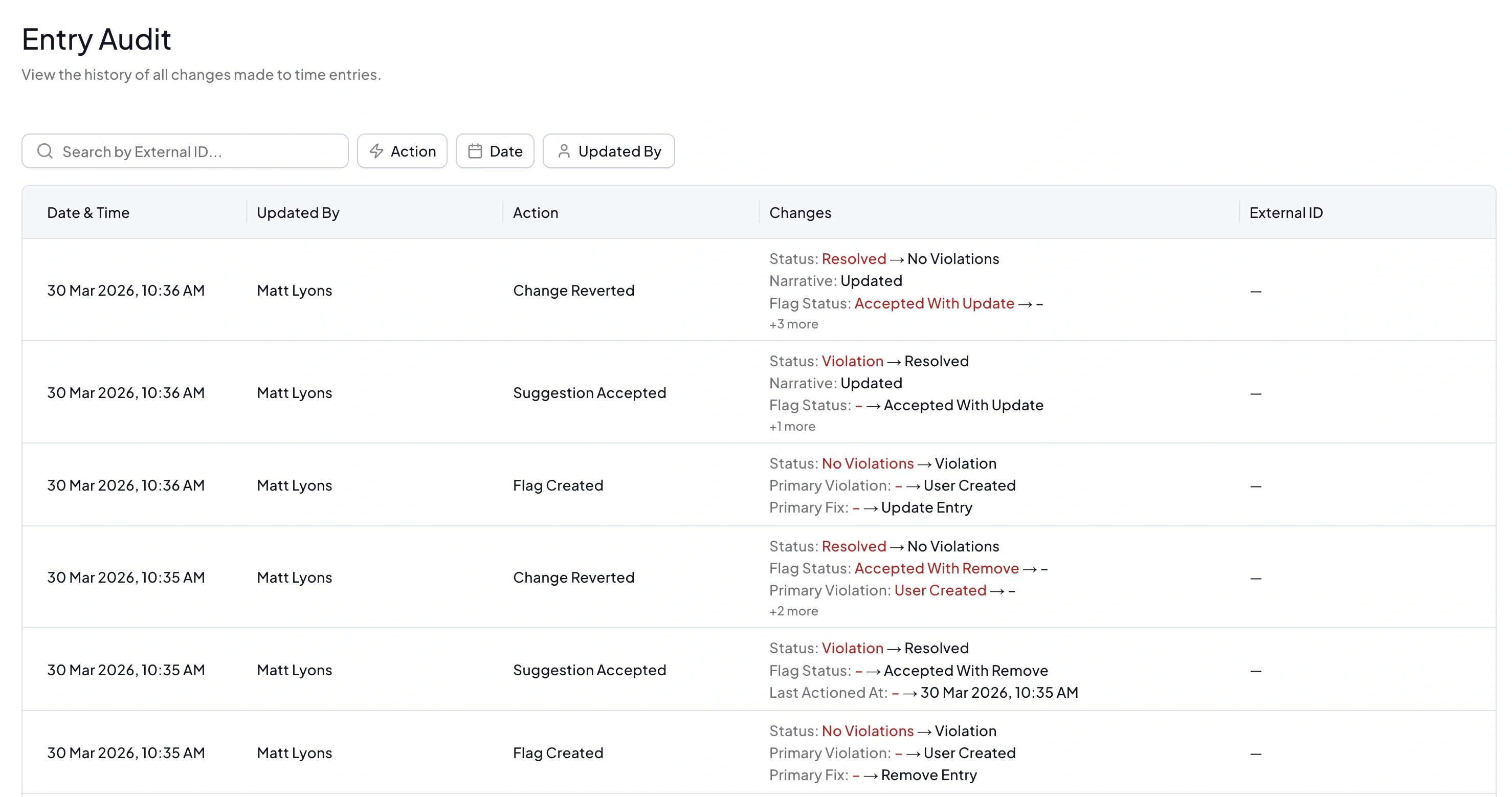
Audit table columns
The table displays the following columns from left to right:
- Date - the date and time the change occurred
- Updated By - the user who made the change, or "Antidote" if the change was made automatically
- External ID - the ID of the time entry in your finance system
- Action - the type of change that occurred (see Actions below)
- Change Diff - a summary of the fields that changed, showing before and after values
- Full View - a link to open the complete before and after detail for the change
Actions
The Action column describes what happened to the time entry. The possible actions are:
- Created - the time entry was read into Antidote from your finance system
- Updated - the time entry was updated in your finance system
- Sent for processing - the entry was submitted to Antidote for rule checking
- Processing complete - Antidote finished processing the entry
- Flag created - Antidote identified a potential issue and created a flag
- Flag ignored - a flag was dismissed without correcting the entry
- Timekeeper notified - an email was sent to the timekeeper to review the entry
- Suggestion added - a correction suggestion was added to the entry
- Suggestion updated - an existing suggestion was modified
- Suggestion deleted - a suggestion was removed
- Suggestion accepted - a suggestion was accepted and applied to the entry
- Change reverted - a previous change to the entry was undone
- Time deleted - the time entry was deleted
Search and filter
You can narrow down the audit log using the following controls:
- Search by External ID - enter the finance system ID for a specific time entry to see only its history
- Date filter - limit results to a specific date range
- Updated By filter - show changes made by a specific user, or filter to changes made automatically by Antidote
- Action filter - show only a specific type of change, such as all flag-related events or all suggestion events
The audit log contains a large volume of data. Some searches or filters may take several seconds to return results. A loading indicator will display while the results are being retrieved.
Viewing change details
Click on any row in the table to open the full detail view for that change. This shows the complete state of the time entry and any associated flags before and after the change occurred.
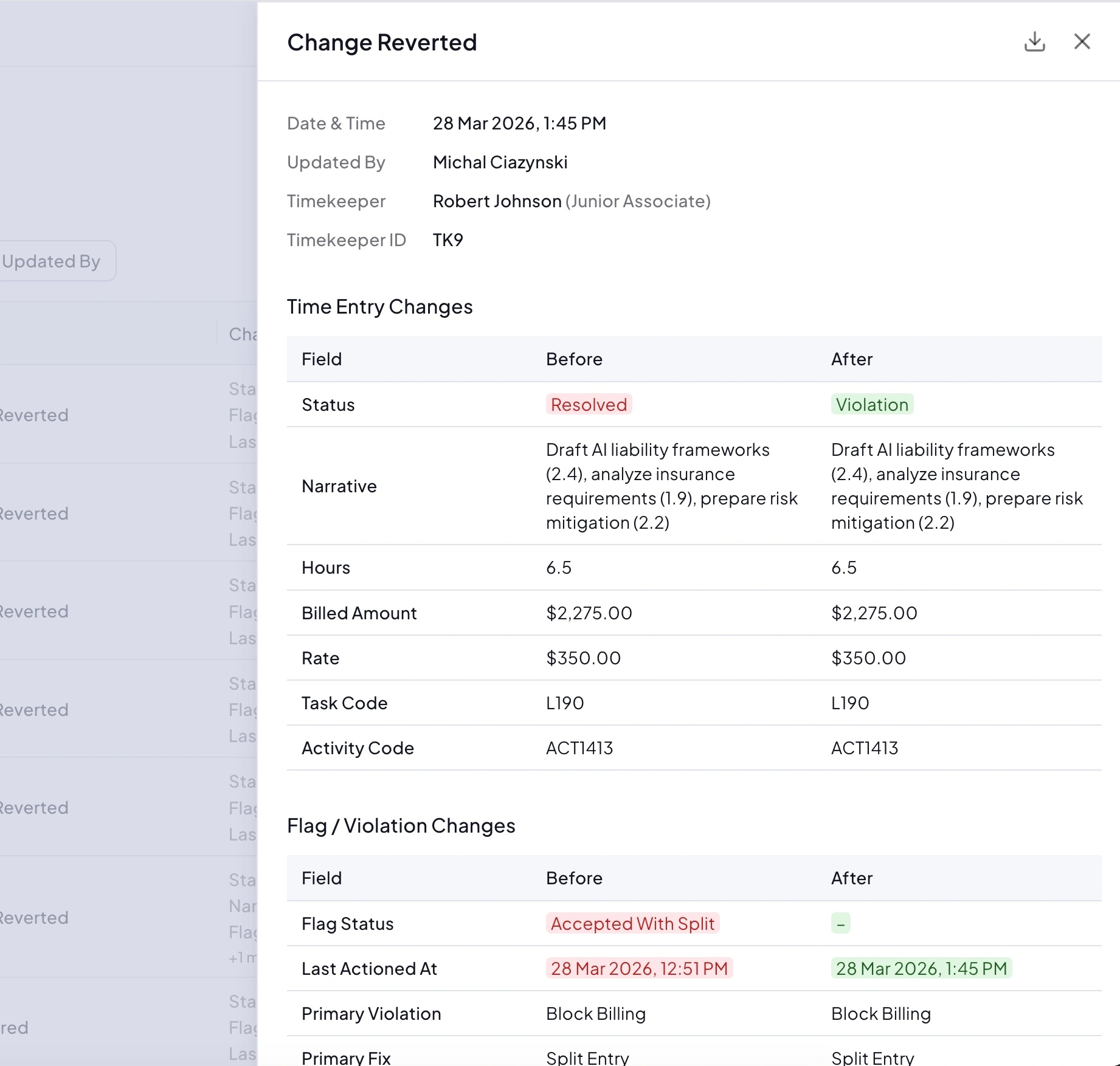
Fields that changed are highlighted:
- Red - the value before the change
- Green - the value after the change
The row itself shows a quick summary of what changed. If there are more changes than can fit in the row, a count such as +2 more is shown - click the row to see all changes in full.
Exporting a change
From the detail view, you can export the full before and after record as a PDF. This is useful if you need to share the change with someone outside Antidote or retain it as evidence.
Linking to the audit log from other views
When viewing a time entry within a matter or invoice, admin users can navigate directly to that entry's audit history. Look for the View entry audit log link in the top right corner of the time entry.
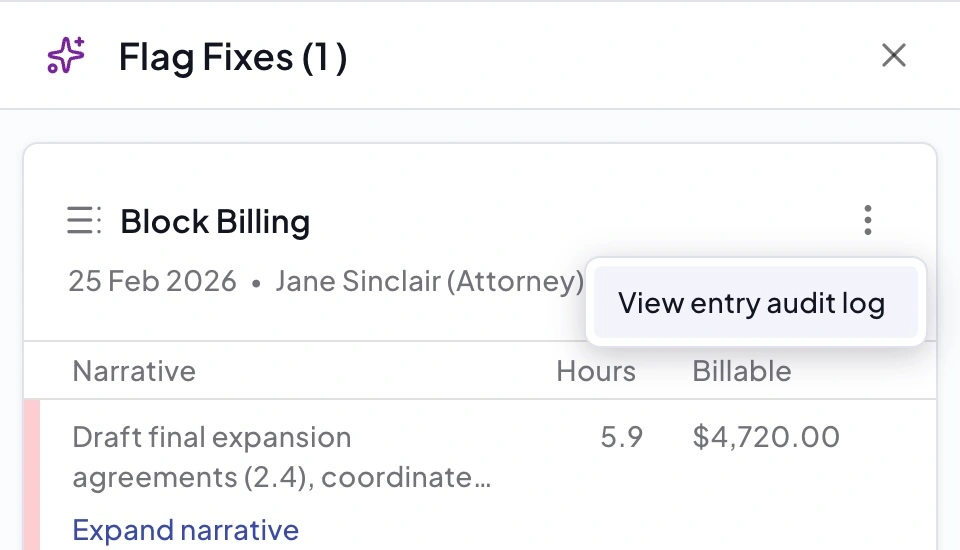
Clicking this link opens the Entry Audit log pre-filtered to show only changes for that specific time entry, so you can immediately see the full history of how it reached its current state.
Using external IDs
Each time entry has an external ID - this is the ID assigned to the entry in your finance system. Antidote records this ID as it reads data from your integration, and you can use it to search the audit log directly.
If you are unsure what the external ID corresponds to in your finance system, contact support and we can help identify what the ID relates to for your specific integration.