User Management
The User Management page displays all users in your organization. Administrators can invite new users to Antidote and configure their roles and data access permissions.
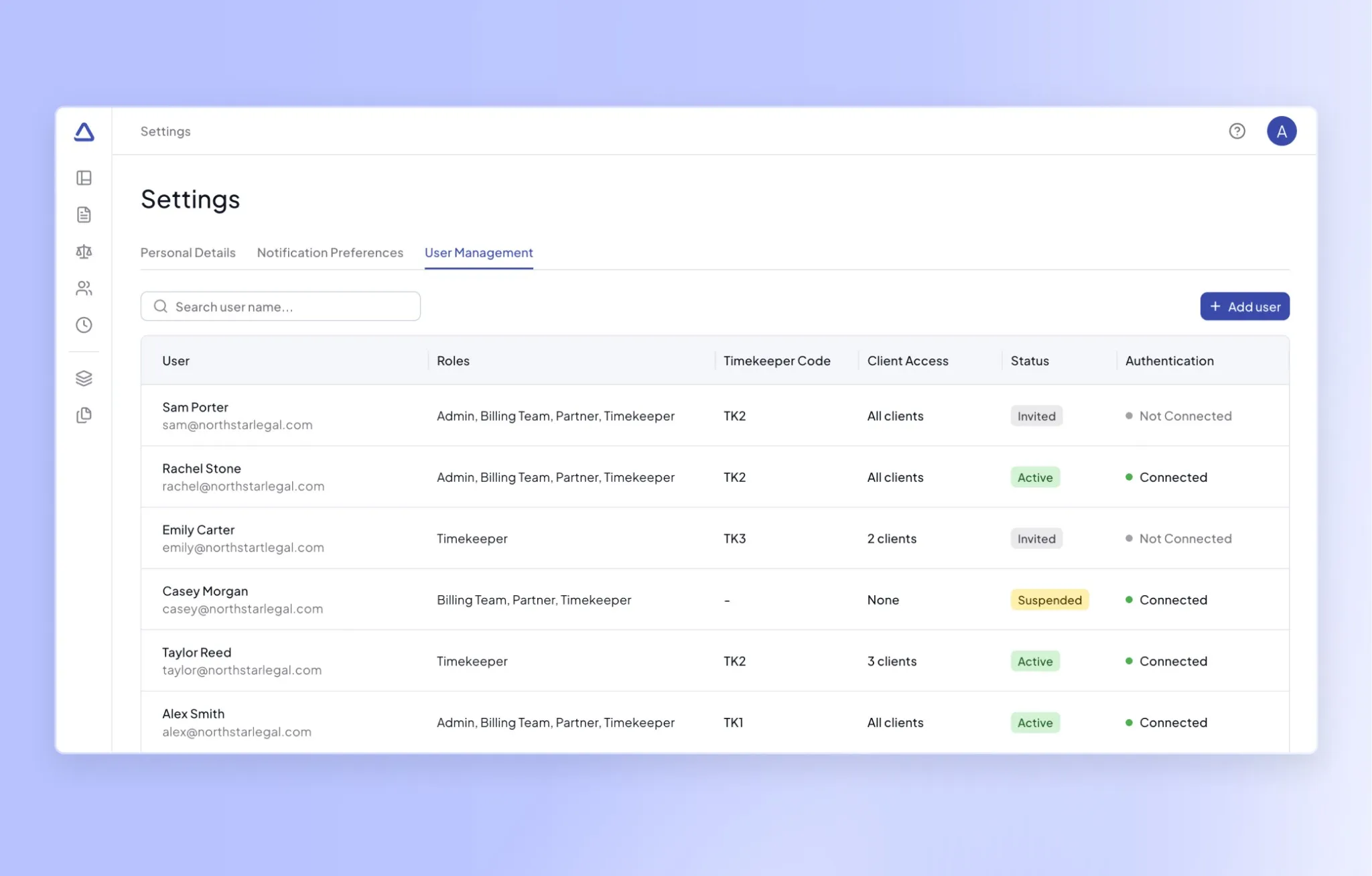
Invite users
To invite a new user:
- Go to Settings > User Management.
- Click the Add user button.
- Enter the user's full name and email address.
- Under User roles, select one or more roles you want the user to have when joining Antidote.
- Optionally, enter a Timekeeper code if the user tracks billable time.
- Configure the user's data access:
- Toggle on "Grant access to all clients and payors" to give visibility into every client and payor account.
- If the toggle is off, you can search and select specific Clients and Payors the user should have access to.
- Click Send invite. The new user will receive an invite link via email to join Antidote.
Once the user joins, their status will change from 'Invited' to 'Active'.
Admins can later edit user permissions, suspend, reactivate, or delete users.
Changing a user's role
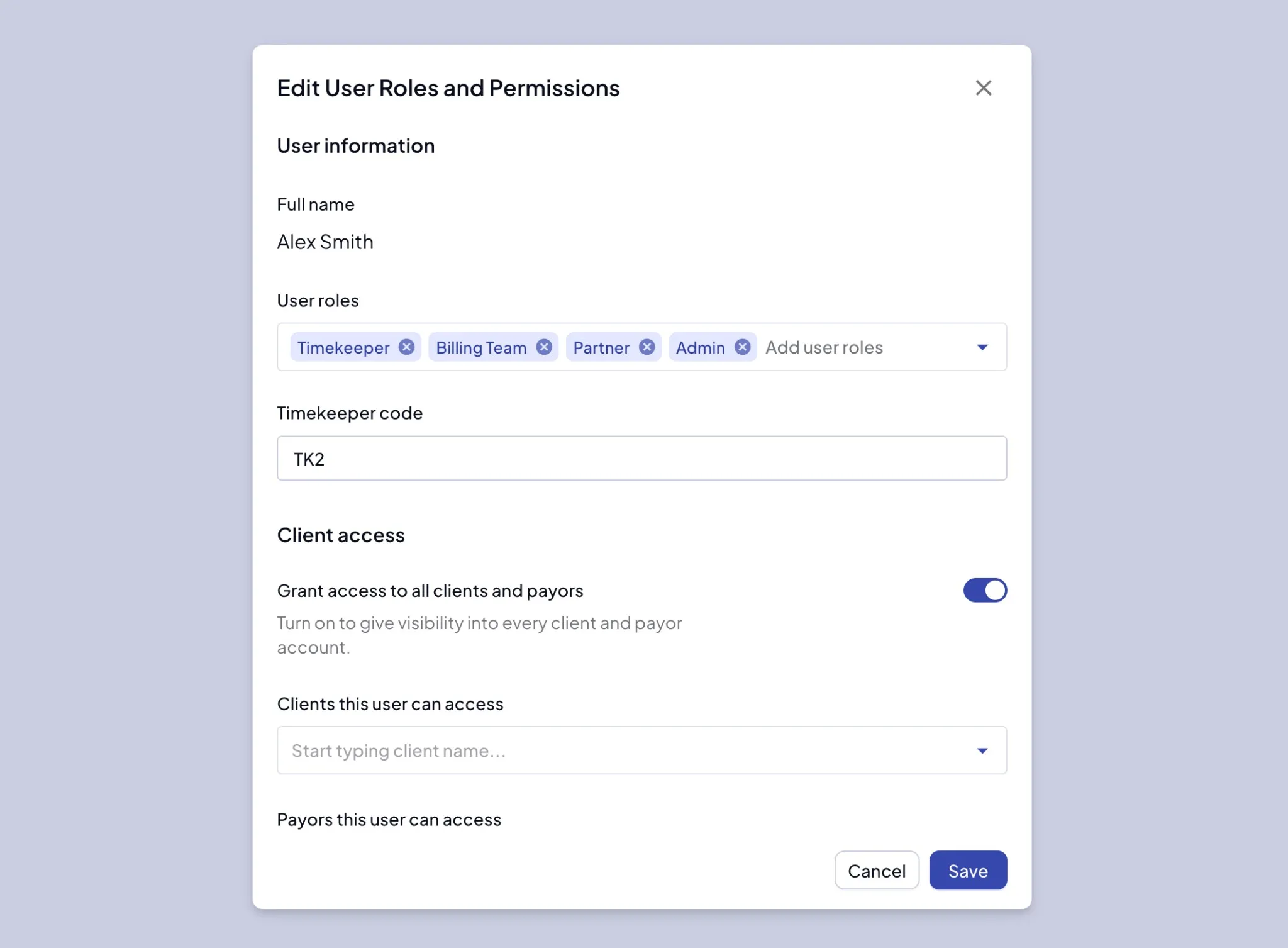
To change a user's roles or data access:
- Go to Settings > User Management.
- Click on the user you want to update.
- Update their roles, timekeeper code, or client/payor access.
- Click Save.
The user's access will update immediately based on their new role assignments.
Suspend users
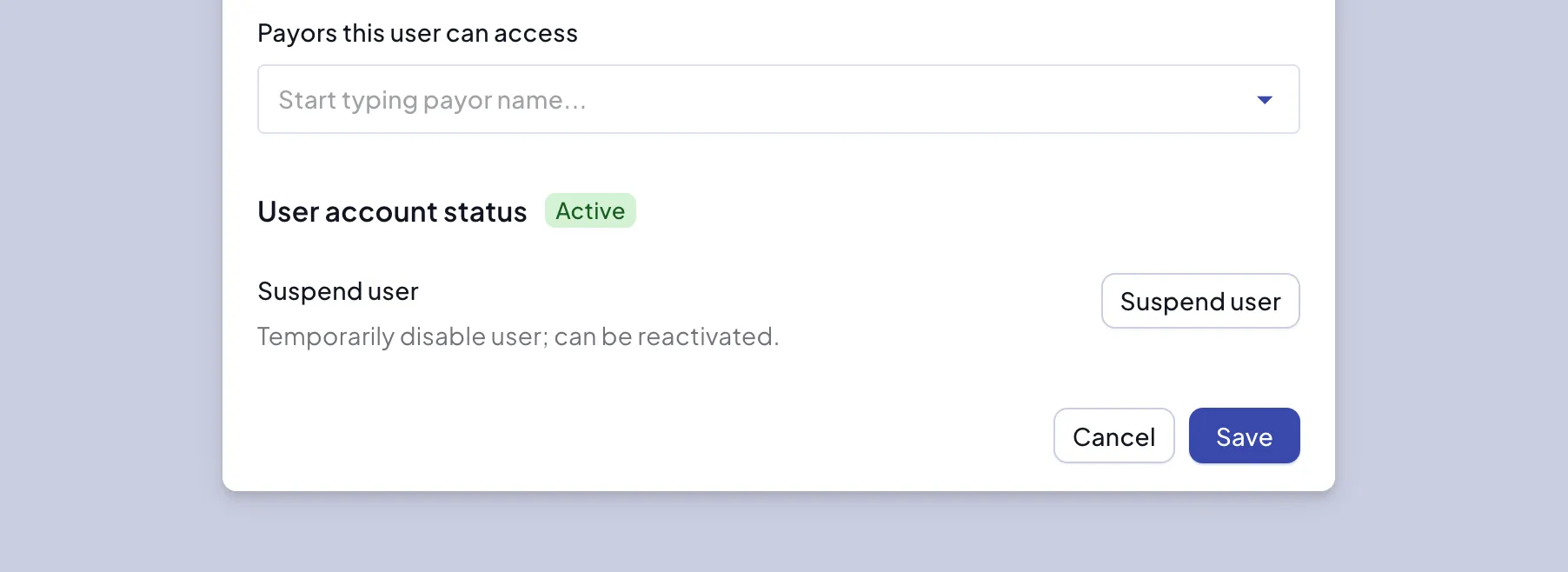
If someone leaves temporarily or you need to revoke access without deleting their account:
- Go to Settings > User Management.
- Click on the user.
- Click Suspend user.
- Confirm the action.
Suspended users cannot log in but their account remains in the system. You can reactivate them at any time.
Reactivate users
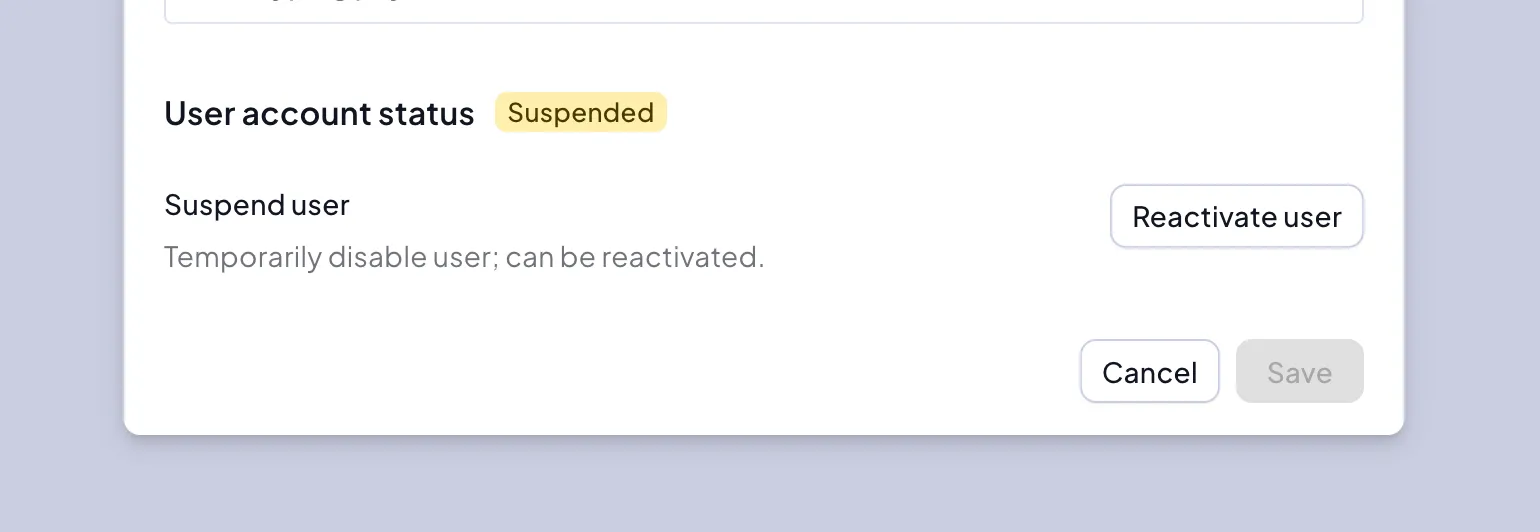
To restore access for a suspended user:
- Go to Settings > User Management.
- Click on the suspended user.
- Click Reactivate user.
- Confirm the action.
Delete users
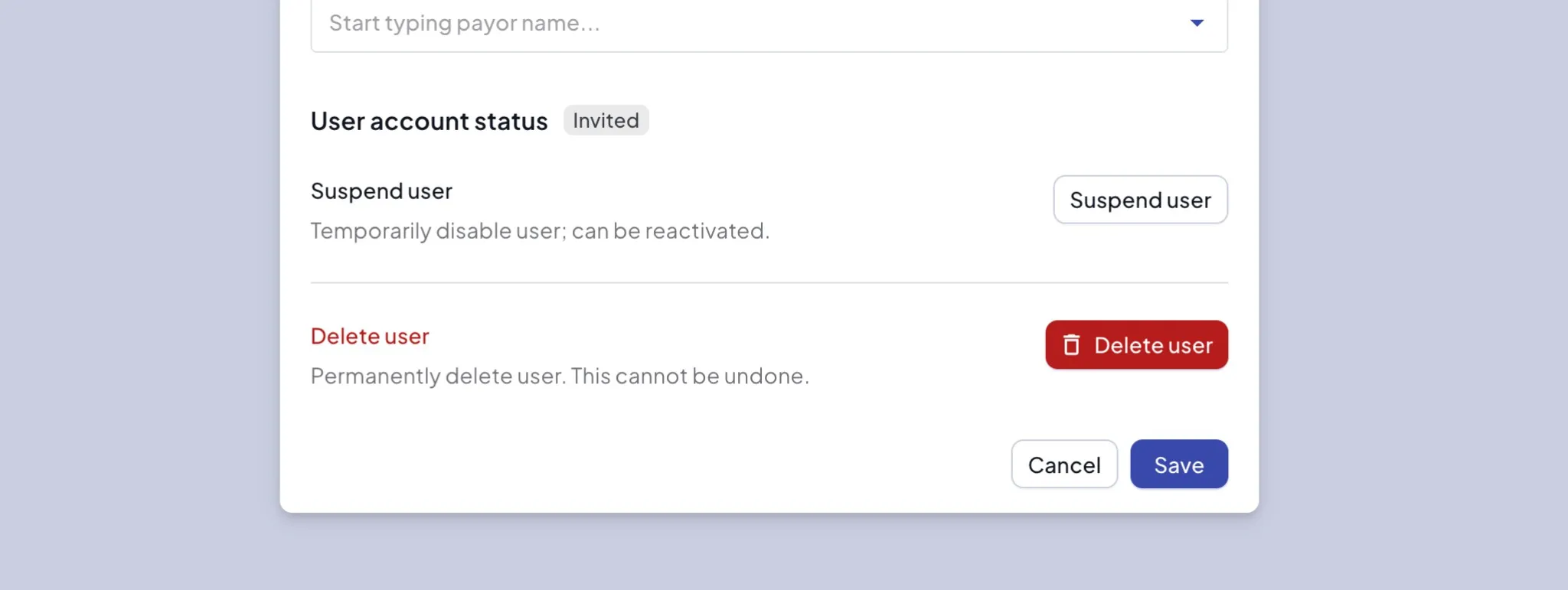
Currently, only invited users can be permanently deleted from user management. To permanently remove a user:
- Go to Settings > User Management.
- Click on the user.
- Click Delete user.
- Confirm the action.
Deleting a user is permanent and cannot be undone.